Category Archives: Databases

C#: If your Data Access Layer leaks, you’re gonna get wet (here’s how to do it right)

So the other day I’m doing a code review in an enterprise application. The goal was to switch the data storage from SharePoint Online Lists to Azure SQL database tables. “Easy,” I thought. “It’s just a change in the Data Access Layer (DAL)”.

Long story short, I started reviewing the source code and… wasn’t amused. This was (a small sample of) the problem:

AdminService.cs
C#
public class AdminService
{
public AdminService(ILogger<AdminService> logger, ISharePointService sharePointService, IConfiguration configuration)
{
// initialization code
}
public async Task<Metadata> AddEmployeeDirectoryItem(PnPContext adminContext, PersonCreated personCreated)
{
// Add Employee Directory stuff
}
// etc etc
}

I mean, dear programmer, look. You want to add a directory related to an employee. I get it. But why is the PnPContext sitting there in the method signature like an uninvited guest at a wedding?

This is what we call a “Leaky Abstraction.” Your Data Access Layer (DAL) is leaking its internal stuff all over your business logic. Depending on the case, today it’s Sharepoint, tomorrow it’s SQL Server, and the day after it’s a carrier pigeon. If your business logic knows in what kind of medium your data is stored in, you’re in for a world of hurt.

The Problem: When your DAL tells too much

The core issue is coupling. When you pass an SqlConnection, an SqlDataReader, or a SharePoint PnPContext directly into your business services, you are essentially tattooing your data vendor onto your forehead.

If you leak these details:

  1. You can’t switch providers: Moving from SQL to SharePoint to Oracle to clay tablets becomes a “rewrite everything” project instead of a “change one class” task.
  2. Testing is a nightmare: You can’t unit test your business logic without a Sharepoint, SQL Server etc. running, because your methods demand a real connection.
  3. Code smell: Your business logic should care about what is being saved, not how the connection string is formatted.

The “Wrong” Way: The Leaky Bucket

Take a look at this example. It’s the kind of code that works fine during development, works fine in UAT, but makes you want to retire when requirements change.

InvoiceLogic.cs
C#
// Somewhere in the Business Logic Layer
public void ProcessInvoice(int invoiceId, string connectionString)
{
using (SqlConnection conn = new SqlConnection(connectionString))
{
conn.Open();
// Why is my Business Logic managing SQL connections?!
var cmd = new SqlCommand("SELECT * FROM Invoices WHERE Id = @id", conn);
cmd.Parameters.AddWithValue("@id", invoiceId);
// ... process logic ...
}
}

Did you notice? The business logic is doing the heavy lifting of database management. If the boss says “We’re moving to an OData API,” you have to touch every single file in your project.

The Solution: The Repository Pattern

So how do you do this correctly?

First of all, it’s a good idea not to reinvent the wheel. You can use the Repository Pattern. Think of a Repository as a mediator between the domain and the data mapping layers. It acts like an in-memory collection of domain objects.

Your business logic should talk to an Interface, and that interface should speak the language of your business (Invoices, Customers, Files), not the language of your storage (Tables, Blobs, Transactions).

The Refactored Way: Clean and Dry
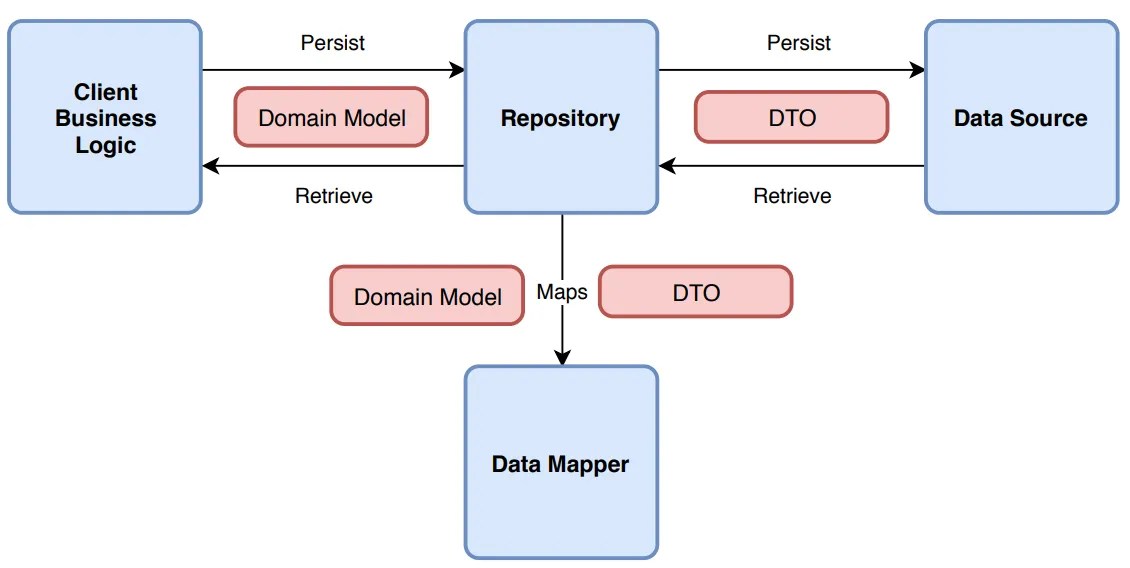
Let’s fix that mess. First, we define what we want to do, without mentioning the data storage medium. Here’s an example of an invoice processor:

1. Clean business objects

Invoice.cs
C#
public class Invoice
{
public int Id { get; set; }
public string CustomerName { get; set; }
public decimal Amount { get; set; }
public DateTime IssueDate { get; set; }
public List<InvoiceItem> Items { get; set; } = new List<InvoiceItem>();
// You can add business logic here...
public void ApplyDiscount(decimal percentage)
{
Amount -= Amount * (percentage / 100);
}
// ...but NEVER data access logic!
}
public class InvoiceItem
{
public string Description { get; set; }
public decimal Price { get; set; }
}

2. Repository Interface

IInvoiceRepository.cs
C#
public interface IInvoiceRepository
{
Invoice GetById(int id);
void Save(Invoice invoice);
}

Notice how the interface uses only basic types (such as int, string etc) or our clean business objects. It should NEVER use data store-specific types, such as DataRow.

3. The Business Logic (the right way)

Now, the business logic is blissfully ignorant. It’s like a person ordering a pizza who doesn’t care if the oven is electric or wood-fired.

InvoiceService.cs
C#
public class InvoiceService
{
private readonly IInvoiceRepository _repo;
public InvoiceService(IInvoiceRepository repo)
{
_repo = repo; // Dependency Injection!
}
public void ProcessInvoice(int invoiceId)
{
var invoice = _repo.GetById(invoiceId);
// Do actual business work here...
_repo.Save(invoice);
}
}

3. Data layer implementation

Now, you can have a SqlInvoiceRepository for today, and a SharePointInvoiceRepository for tomorrow. The rest of your app won’t even notice the difference. All they need is to implement IInvoiceRepository.

Final Thoughts

It’s tempting to just “pass the connection” because it’s faster. It’s easy to forget that code lives longer than infrastructure.

But in any case, be careful to consider your future self (not to mention others that might maintain your code). Is your software supposed to grow? A good place to start is decoupling.

Whatever you do, PLEASE PLEASE PLEASE DON’T LEAK YOUR DAL DETAILS.

SQL Server: How to allow access to a Windows service without a password

Let us start by stating the obvious: password management for programs and services is a huge pain for developers.

It’s one of the things that is always overlooked during development, where you’re just trying to make the thing work. It’s even not given much attention during testing, where people are usually focused on whether it works correctly on normal uses and edge cases, they look for the UI and usability etc etc.

But come deployment time and the admins start complaining. Storing passwords in plain text files is, how to put it mildly, BLOODY HORRIBLE from a security perspective. And storing them in better ways takes a surprising amount of time –just when the devs thought they’re almost finished.

So having less passwords to store and secure is very helpful for everyone. And one thing many applications need is the credentials to a database.

Fortunately, if your application is running as a Windows service and your database is SQL server, you don’t need a password. You can use integrated security. All you need is to allow (grant) access for the service user to read data from SQL server.

Now here’s the thing: if you’re using a domain user to run the server, that’s obvious. You just create the user in SQL and grant access as needed (you can even use the script below and change the user). But what happens when, as is very common, the application is running under the Local System account?

Turns out, fortunately, there’s a solution for that as well. Every computer’s Local System account exists in Active Directory as “hostname$”. E.g. if the hostname of the application server is MYSERVER, the user name will be MYDOMAIN\MYSERVER$.

So you can run the following SQL to grant access:

/*
Source: DotJim blog (http://dandraka.com)
Jim Andrakakis, April 2023
*/

-- suppose you work on domain MYDOMAIN
-- and the server that hosts the Windows
-- service is MYSERVER
-- this is the name given by the hostname command

USE mydatabase;
GO

CREATE LOGIN [MYDOMAIN\MYSERVER$] FROM WINDOWS;
GO
CREATE USER [MYDOMAIN\MYSERVER$] FOR LOGIN [MYDOMAIN\MYSERVER$]
GO
/* db_datareader grants read-only access */
ALTER ROLE [db_datareader] ADD MEMBER [MYDOMAIN\MYSERVER$]
GO
/* if you want to insert, update or delete, add db_datawriter */
ALTER ROLE [db_datawriter] ADD MEMBER [MYDOMAIN\MYSERVER$]
GO

That done, you can use the following connection string to connect to the database:

Server=MYDBSERVER;Database=myDataBase;Trusted_Connection=yes;

or if you’re running a named instance:

Server=MYDBSERVER\MYINSTANCE;Database=myDataBase;Trusted_Connection=yes;

SQL Server: How to backup all databases with a timestamp

I hate, hate, hate clicking and clicking again, especially for tasks that can be automated. And one of these tasks is doing DB backups, which I have to do every time before starting a deployment.

So here’s what I’ve come up with. This generates a backup for every database except the system ones (see line 20) as databasename_yyyymmdd.bak, e.g. ERP-UAT-DB_20230321.bak.

/*
Source: DotJim blog (http://dandraka.com)
Jim Andrakakis, March 2023
*/

DECLARE @name NVARCHAR(256) -- database name  
DECLARE @path NVARCHAR(512) -- path for backup files  
DECLARE @fileName NVARCHAR(512) -- filename for backup  
DECLARE @fileDate NVARCHAR(40) -- used for file name

/* specify database backup directory */
SET @path = 'D:\myBackups\'  
 
/* get date as yyyyMMdd */
SELECT @fileDate = CONVERT(NVARCHAR(20),GETDATE(),112) 
 
DECLARE db_cursor CURSOR READ_ONLY FOR  
SELECT name 
FROM master.sys.databases 
WHERE name NOT IN ('master','model','msdb','tempdb')  -- exclude these databases
AND state = 0 -- database is online
AND is_in_standby = 0 -- database is not read only for log shipping

OPEN db_cursor   
FETCH NEXT FROM db_cursor INTO @name   
 
WHILE @@FETCH_STATUS = 0   
BEGIN   
   SET @fileName = @path + @name + '_' + @fileDate + '.BAK'  
   BACKUP DATABASE @name TO DISK = @fileName  
   FETCH NEXT FROM db_cursor INTO @name   
END   
 
CLOSE db_cursor   
DEALLOCATE db_cursor

Change the path, obviously, and you can also change the WHERE name NOT IN (‘master’,’model’,’msdb’,’tempdb’). E.g. you can do something like WHERE name LIKE ‘%_PRODUCTION’ to suit your scenario.

SQL Server: How to shrink your DB Logs (without putting your job at risk)

This post is mostly a reminder for myself 🙂

When your SQL Server DB log files are growing and your disk is close to being full (or, as it happened this morning, fill up completely thus preventing any DB operation whatsoever, bringing the affected system down!) you need to shrink them.

What this means, basically, is that you create a backup (do NOT skip that!) and then you delete information that allows you to recover the database to any point in time before the backup. That’s what SET RECOVERY SIMPLE & DBCC SHRINKFILE do. And since you kept a backup, you no longer need this information. You don’t need it for operations after the backup though, that’s why we go back to full recovery mode with SET RECOVERY FULL at the end.

So what you need is to login to your SQL Server with admin rights and:

USE DatabaseName
GO
BACKUP DATABASE DatabaseName
TO DISK = 'C:\dbbackup\DatabaseName.bak'
   WITH FORMAT,
      MEDIANAME = 'DatabaseNameBackups',
      NAME = 'Full Backup of DatabaseName';
GO
ALTER DATABASE DatabaseName SET RECOVERY SIMPLE;
GO
CHECKPOINT;
GO
DBCC SHRINKFILE ('DatabaseName_Log', 10);
GO
ALTER DATABASE DatabaseName SET RECOVERY FULL;
GO

Notice the 10 there -that’s the size, in MB, that the DB Log file will shrink to. You probably need to change that to match your DB needs. Also, the DatabaseName_Log is the logical name of your DB Log. You can find it in the DB properties. You probably also need to change the backup path from the example C:\dbbackup\DatabaseName.bak.

Powershell: how to overcome MaxCharactersInDocument limit when reading XML

When working with XML files, which I usually process with Powershell scripts, sometimes I stumble on the following error message:

Select-Xml : The file 'C:\data\lalala.xml' cannot be read: The input document has exceeded a limit set by MaxCharactersInDocument.

The problem here is that Powershell has a hard-coded limit to stop you from reading huge files. This limit is 536870912 bytes (0.5 Gb).

So what can you do if you need to process such a large file? C# to the rescue! You can add inline C# code that uses XmlTextReader, which is very fast.

The specific problem I had to solve is to get all the IDs from several XML files and create SQL out of them. Then I used this SQL to create a temp table in my SQL server, like this:

SELECT t.* INTO #documentids FROM ( 
  SELECT 'e29e16f9-f77e-4dce-92e0-99fef71c868d' AS id UNION ALL
  SELECT '0cd0fef5-0037-492e-861f-593f7322c2a3' AS id UNION ALL
  SELECT 'e963a4da-2a60-43f1-b4d4-9b07b9d07d57' AS id UNION ALL
  -- <all the stuff created by powershell> 
  SELECT 'ca70d7b7-40c8-418d-8612-42fe2fd5bf28' AS id 
) t

But of course you can easily customize the code to meet your needs.

I tested with an 1.76 Gb XML on my dev laptop. It took 19.6 seconds. Not bad 🙂

Here’s the code I used:

#
# Source: DotJim blog (http://dandraka.com)
# Jim Andrakakis, January 2020
#
Clear-Host
$ErrorActionPreference='Stop'

$referencingassemblies = ("System.XML.dll")
Add-Type -ReferencedAssemblies $referencingassemblies -Language CSharp @"
using System;
using System.IO;
using System.Xml;
using System.Collections.Generic;
namespace DotJim.Powershell 
{
    public static class Xml
    {
        public static List<string> GetAttributes(string fileName, string localName, string template)
        {
            var list = new List<string>();
            XmlTextReader txtreaderObj = new XmlTextReader(fileName);
            txtreaderObj.WhitespaceHandling = WhitespaceHandling.None;
            while (txtreaderObj.Read())
            {
                if (txtreaderObj.LocalName.Equals(localName) &&
                txtreaderObj.IsStartElement())
                {
                     txtreaderObj.Read();
                     //Console.WriteLine(txtreaderObj.Value);
                     string s = txtreaderObj.Value;
                     string line = string.Format(template, s);
                     list.Add(line);
                }
            } 
            return list;
        }
    }
}
"@;

# Here I'm trying to create a big SELECT sql statement out of all the IDs in the xml
$template = "SELECT '{0}' AS id UNION ALL"
$fileList = @("C:\data\printdata1.xml", "C:\data\printdata1.xml")

$StartDate=(Get-Date)

foreach($fileName in $fileList)
{
    $list = [DotJim.Powershell.Xml]::GetAttributes($fileName, "DocumentId", $template)
    $list[$list.Count-1] = $list[$list.Count-1].Replace("UNION ALL", "")
    Out-File -FilePath $fileName.Replace(".xml", ".sql") -InputObject $list
}

$EndDate=(Get-Date)

$timeDiff = New-TimeSpan –Start $StartDate –End $EndDate
Write-Host "Finished processing $($fileList.Count) files in $($timeDiff.TotalSeconds) seconds"

Have fun coding!

Do execution plans change when using different filter values?

(short answer: yes!)

Anyone who develops software that interacts with a database knows (read: should know) how to read a query execution plan, given by “EXPLAIN PLAN”, and how to avoid at least the most common problems like a full table scan.

It is obvious that a plan can change if the database changes. For example if we add an index that is relevant to our query, it will be used to make our query faster. And this will be reflected in the new plan.

Likewise if the query changes. If instead of

SELECT * FROM mytable WHERE somevalue > 5

the query changes to

SELECT * FROM mytable WHERE somevalue IN 
  (SELECT someid FROM anothertable)

the plan will of course change.

So during a database performance tuning seminar at work, we came to the following question: can the execution plan change if we just change the filter value? Like, if instead of

SELECT * FROM mytable WHERE somevalue > 5

the query changes to

SELECT * FROM mytable WHERE somevalue > 10

It’s not obvious why it should. The columns used, both in the SELECT and the WHERE clause, do not change. So if a human would look at these two queries, they would select the same way of executing them (e.g. using an index on somevalue if one is available).

But databases have a knowledge we don’t have. They have statistics.

Let’s do an example. We’ll use Microsoft SQL server here. The edition doesn’t really matter, you can use Express for example. But the idea, and the results, are the same for Oracle or any other major RDBMS.

First off, let’s create a database. Open Management Studio and paste the following (changing the paths as needed):

CREATE DATABASE [PLANTEST]  
CONTAINMENT = NONE  
ON  PRIMARY  
( NAME = N'PLANTEST',  
FILENAME = N'C:\DATA\PLANTEST.mdf' ,  
SIZE = 180MB , FILEGROWTH = 10% )  
LOG ON  
( NAME = N'PLANTEST_log',  
FILENAME = N'C:\DATA\PLANTEST_log.ldf' ,  
SIZE = 20MB , FILEGROWTH = 10%) 
GO

Note that, by default, I’ve allocated a lot of space, 180MB. There’s a reason for that; We know that we’ll pump in a lot of data, and we want to avoid the delay of the db files growing.

Now let’s create a table to work on:

USE PLANTEST 
GO 
CREATE TABLE dbo.TESTWORKLOAD 
( testid int NOT NULL IDENTITY(1,1), 
testname char(10) NULL, 
testdata nvarchar(36) NULL )  
ON [PRIMARY] 
GO 

And let’s fill it (this can take some time, say around 5-10 minutes):

DECLARE @cnt1 INT = 0;
DECLARE @cnt2 INT = 0;

WHILE @cnt1 < 20
BEGIN
	SET @cnt2 = 0;
	WHILE @cnt2 < 100000
	BEGIN
	   insert into TESTWORKLOAD (testname, testdata) 
             values ('COMMON0001', CONVERT(char(36), NEWID()));
	   SET @cnt2 = @cnt2 + 1;
	END;
	insert into TESTWORKLOAD (testname, testdata) 
          values ('SPARSE0002', CONVERT(char(36), NEWID()));
	SET @cnt1 = @cnt1 + 1;
END;
GO

What I did here is, basically, I filled the table with 2 million (20 * 100000) plus 20 rows. Almost all of them (2 million) in the testname field, have the value “COMMON0001”. But a few, only 20, have a different value, “SPARSE0002”.

Essentially the table is our proverbial haystack. The “COMMON0001” rows are the hay, and the “SPARSE0002” rows are the needles 🙂

Let’s examine how the database will execute these two queries:

SELECT * FROM TESTWORKLOAD WHERE testname = 'COMMON0001';
SELECT * FROM TESTWORKLOAD WHERE testname = 'SPARSE0002';

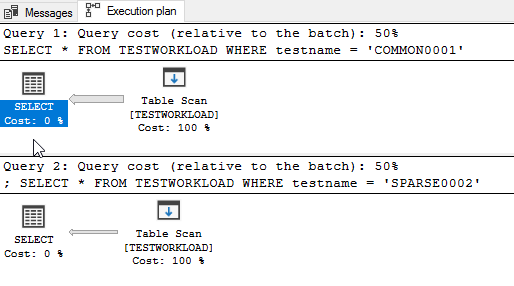
Select both of them and, in management studio, press Control+L or the “Display estimated execution plan” button. What you will see is this:

What you see here is that both queries will do a full table scan. That means that the database will go and grab every single row from the table, look at the rows one by one, and give us only the ones who match (the ones with COMMON0001 or SPARSE0002, respectively).

That’s ok when you don’t have a lot of rows (say, up to 5 or 10 thousand), but it’s terribly slow when you have a lot (like our 2 million).

So let’s create an index for that:

CREATE NONCLUSTERED INDEX [IX_testname] ON [dbo].[TESTWORKLOAD]
(
	[testname] ASC
)
GO

And here’s where you watch the magic happen. Select the same queries as above and press Control+L (or the “Display estimated execution plan” button) again. Voila:

What you see here is that, even though the only difference between the two queries is the filter value, the execution plan changes.

Why does this happen? And how?

Well, here’s where statistics are handy. On the Object Explorer of management studio, expand (the “+”) our database and table, and then the “Statistics” folder.

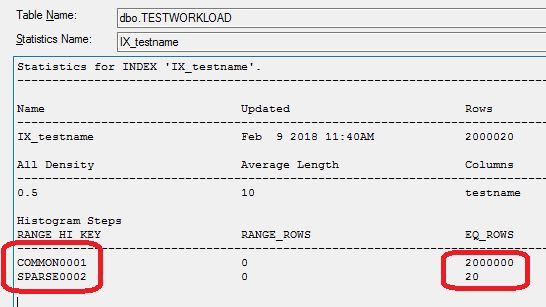
You can see the statistic for our index, IX_testname. If you open it (double click and then go to “details”) you see the following:

So (I’m simplifying a bit here, but not a lot) the database knows how many rows have the value “COMMON0001” (2 million) and how many the value “SPARSE0002” (just 20).

Knowing this, it concludes (that’s the job of the query optimizer) that the best way to execute the 2 queries is different:

The first one (WHERE testname = ‘COMMON0001’) will return almost all the rows of the table. Knowing this, the optimizer decides that it’s faster to just get everything (aka Full Table Scan) and filter out the very few rows we don’t need.

For the second one (WHERE testname = ‘SPARSE0002’), things are different. The optimizer knows that it’s looking only for a few rows, and it’s smartly using the index to find them as fast as possible.

In plain English, if you want the hay out of a haystack, you just get the whole stack. But if you’re looking for the needles, you go find them one by one.