Category Archives: Tutorials and guides

C#: If your Data Access Layer leaks, you’re gonna get wet (here’s how to do it right)

So the other day I’m doing a code review in an enterprise application. The goal was to switch the data storage from SharePoint Online Lists to Azure SQL database tables. “Easy,” I thought. “It’s just a change in the Data Access Layer (DAL)”.

Long story short, I started reviewing the source code and… wasn’t amused. This was (a small sample of) the problem:

AdminService.cs
C#
public class AdminService
{
public AdminService(ILogger<AdminService> logger, ISharePointService sharePointService, IConfiguration configuration)
{
// initialization code
}
public async Task<Metadata> AddEmployeeDirectoryItem(PnPContext adminContext, PersonCreated personCreated)
{
// Add Employee Directory stuff
}
// etc etc
}

I mean, dear programmer, look. You want to add a directory related to an employee. I get it. But why is the PnPContext sitting there in the method signature like an uninvited guest at a wedding?

This is what we call a “Leaky Abstraction.” Your Data Access Layer (DAL) is leaking its internal stuff all over your business logic. Depending on the case, today it’s Sharepoint, tomorrow it’s SQL Server, and the day after it’s a carrier pigeon. If your business logic knows in what kind of medium your data is stored in, you’re in for a world of hurt.

The Problem: When your DAL tells too much

The core issue is coupling. When you pass an SqlConnection, an SqlDataReader, or a SharePoint PnPContext directly into your business services, you are essentially tattooing your data vendor onto your forehead.

If you leak these details:

  1. You can’t switch providers: Moving from SQL to SharePoint to Oracle to clay tablets becomes a “rewrite everything” project instead of a “change one class” task.
  2. Testing is a nightmare: You can’t unit test your business logic without a Sharepoint, SQL Server etc. running, because your methods demand a real connection.
  3. Code smell: Your business logic should care about what is being saved, not how the connection string is formatted.

The “Wrong” Way: The Leaky Bucket

Take a look at this example. It’s the kind of code that works fine during development, works fine in UAT, but makes you want to retire when requirements change.

InvoiceLogic.cs
C#
// Somewhere in the Business Logic Layer
public void ProcessInvoice(int invoiceId, string connectionString)
{
using (SqlConnection conn = new SqlConnection(connectionString))
{
conn.Open();
// Why is my Business Logic managing SQL connections?!
var cmd = new SqlCommand("SELECT * FROM Invoices WHERE Id = @id", conn);
cmd.Parameters.AddWithValue("@id", invoiceId);
// ... process logic ...
}
}

Did you notice? The business logic is doing the heavy lifting of database management. If the boss says “We’re moving to an OData API,” you have to touch every single file in your project.

The Solution: The Repository Pattern

So how do you do this correctly?

First of all, it’s a good idea not to reinvent the wheel. You can use the Repository Pattern. Think of a Repository as a mediator between the domain and the data mapping layers. It acts like an in-memory collection of domain objects.

Your business logic should talk to an Interface, and that interface should speak the language of your business (Invoices, Customers, Files), not the language of your storage (Tables, Blobs, Transactions).

The Refactored Way: Clean and Dry
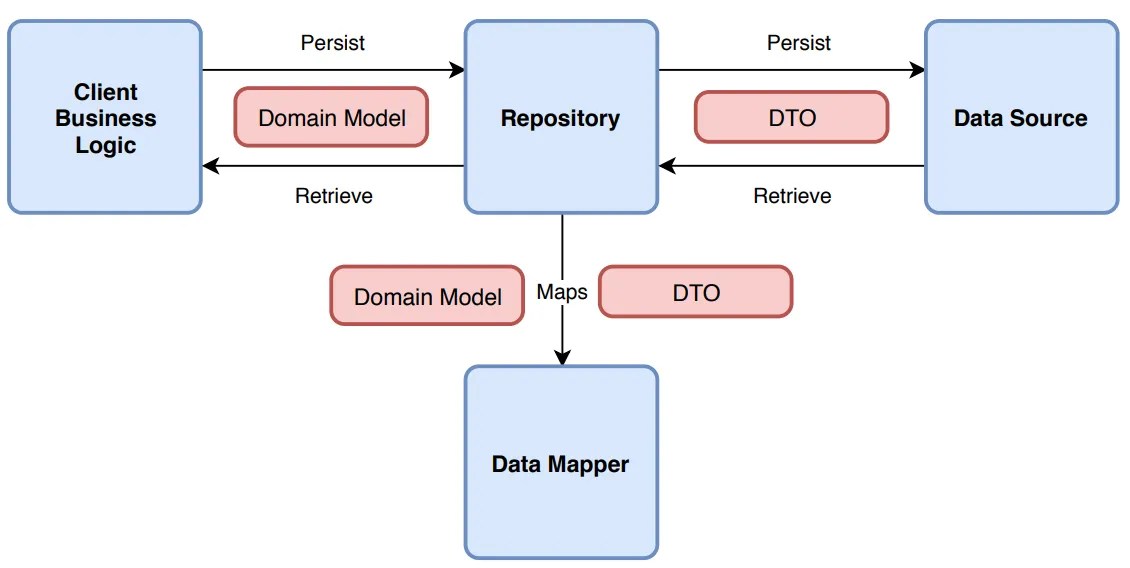
Let’s fix that mess. First, we define what we want to do, without mentioning the data storage medium. Here’s an example of an invoice processor:

1. Clean business objects

Invoice.cs
C#
public class Invoice
{
public int Id { get; set; }
public string CustomerName { get; set; }
public decimal Amount { get; set; }
public DateTime IssueDate { get; set; }
public List<InvoiceItem> Items { get; set; } = new List<InvoiceItem>();
// You can add business logic here...
public void ApplyDiscount(decimal percentage)
{
Amount -= Amount * (percentage / 100);
}
// ...but NEVER data access logic!
}
public class InvoiceItem
{
public string Description { get; set; }
public decimal Price { get; set; }
}

2. Repository Interface

IInvoiceRepository.cs
C#
public interface IInvoiceRepository
{
Invoice GetById(int id);
void Save(Invoice invoice);
}

Notice how the interface uses only basic types (such as int, string etc) or our clean business objects. It should NEVER use data store-specific types, such as DataRow.

3. The Business Logic (the right way)

Now, the business logic is blissfully ignorant. It’s like a person ordering a pizza who doesn’t care if the oven is electric or wood-fired.

InvoiceService.cs
C#
public class InvoiceService
{
private readonly IInvoiceRepository _repo;
public InvoiceService(IInvoiceRepository repo)
{
_repo = repo; // Dependency Injection!
}
public void ProcessInvoice(int invoiceId)
{
var invoice = _repo.GetById(invoiceId);
// Do actual business work here...
_repo.Save(invoice);
}
}

3. Data layer implementation

Now, you can have a SqlInvoiceRepository for today, and a SharePointInvoiceRepository for tomorrow. The rest of your app won’t even notice the difference. All they need is to implement IInvoiceRepository.

Final Thoughts

It’s tempting to just “pass the connection” because it’s faster. It’s easy to forget that code lives longer than infrastructure.

But in any case, be careful to consider your future self (not to mention others that might maintain your code). Is your software supposed to grow? A good place to start is decoupling.

Whatever you do, PLEASE PLEASE PLEASE DON’T LEAK YOUR DAL DETAILS.

Stop CI/CD pipeline if a Powershell script contains errors

Contrary to “normal” languages like C# or Java, Powershell is not a compiled language, but rather an interpreted one. This means that instead of using a compiler, the Powershell Scripting Runtime Environment reads and executes the code line-by-line during runtime.

That has well known advantages -for example, you can change code on the spot- and disadvantages -e.g. performance. But one major disadvantage is that there are no compiler errors. That means that if you forget to close a parenthesis or a bracket, nothing works. It’s the silliest of mistakes but still crashes everything.

With Powershell being used in non-interactive environments, like Azure Functions, it’s becoming all the more important to guard against such errors.

Fortunately, there is a solution for this. Microsoft has published the PSScriptAnalyzer module (link) which includes the Invoke-ScriptAnalyzer (link) command. Running this against your code, you get a list of warnings and errors:

The best things is, you can include this in your CI/CD pipelines, e.g. in Azure Devops or Github.

So here’s an example of an Azure Devops pipeline task that checks for ParseErrors (meaning, the script is not readable) and stops the build in case such an error is found:

#
# Source: DotJim blog (http://dandraka.com)
# Jim Andrakakis, October 2024
#
- task: PowerShell@2
  displayName: Check for Powershell parsing errors
  inputs:
    targetType: 'inline'
    errorActionPreference: 'stop'
    pwsh: true
    script: | 
      Install-Module -Name PSScriptAnalyzer -Scope CurrentUser -Force
      Write-Host 'Performing code analysis using Microsoft Invoke-ScriptAnalyzer'
      $findings = Invoke-ScriptAnalyzer -Path '$(System.DefaultWorkingDirectory)' -Recurse -Severity ParseError,Error
      $findings | Format-List
      if (($findings | Where-Object { $_.Severity -eq 'ParseError' }).Count -gt 0) { Write-Warning "Parse error(s) were found, review analyser results."; exit 1 }   

Enjoy 😊

How to get a backup of your Azure Devops repository including all branches

While Azure Devops is widely used, Microsoft’s backup solutions are surprisingly thin. With people depending on it, individuals and enterprises alike, you’d expect a bit more.

There are various tools around, but here’s my version in the form of a Powershell script. What it does is:

  • Connects to a specific Azure Devops project and repo.
  • Lists all branches, downloads them using git and zips them.
  • The zip, one for every branch, is named Backup_yyyy-MM-dd_branch.zip.

Prerequisites are not much, but:

  • You need git installed and
  • you need a PAT with read access to your code (instructions here).

So here’s the script:

#
# Source: DotJim blog (https://dandraka.com)
# Jim Andrakakis, October 2024
# Updated September 2025, fix for projects and orgs containing spaces
#

# BackupBranches.ps1

param (
    [string]$organization = "MYORG",
    [string]$project = "MYPROJECT",
    [string]$repository = "MYREPO",
    [string]$backupFolder = "C:\Temp\DevOpsBranches",    
	[string]$branchFilter = "" # leave empty for all branches
)

Clear-Host
$ErrorActionPreference='Stop'
 
$pat = Read-Host -MaskInput -Prompt "Enter Personal Access Token for $($env:USERNAME) and $($project)/$($repository)"
$base64AuthInfo = [Convert]::ToBase64String([Text.Encoding]::ASCII.GetBytes(":$pat"))
 
$tempFolder = Join-Path $backupFolder $repository
$repoNoSpace = $repository.Replace(' ','%20')
$projNoSpace = $project.Replace(' ','%20')
 
Write-Host "[$([datetime]::Now.ToString('yyyy-MM-dd HH:mm:ss'))] Starting, output directory is $tempFolder"
 
# Ensure temp folder exists
if (-not (Test-Path -Path $tempFolder)) {
    New-Item -Path $tempFolder -ItemType Directory | Out-Null
}
 
# API URL for branches
$branchesApiUrl = "https://dev.azure.com/$organization/$projNoSpace/_apis/git/repositories/$repoNoSpace/refs?filter=heads/&api-version=6.0"
 
# Get all branches from the repository
$response = Invoke-RestMethod -Uri $branchesApiUrl -Headers @{Authorization=("Basic {0}" -f $base64AuthInfo)}
 
$branchList = $response.value | Sort-Object -Property name
 
# Iterate through each branch
foreach ($branch in $branchList) {
	try {
		$branchName = $branch.name -replace "refs/heads/", ""

		# branch filter, if any
		if (-not ([string]::IsNullOrWhiteSpace($branchFilter)) -and ($branchName -notlike "*$branchFilter*")) {
			continue
		}
	 
		# Define the folder for the branch
		$branchNameStrilized = "$($branchName.Replace('/','_').Replace(' ','_'))"
		$branchFolder = "$tempFolder\$branchNameStrilized"
		 
		# Remove the folder if it exists from previous runs
		if (Test-Path -Path $branchFolder) {
			Remove-Item -Recurse -Force $branchFolder
		}
	 
		# Clone the specific branch
		$gitUrl = "https://dev.azure.com/$organization/$projNoSpace/_git/$repoNoSpace"
		Write-Host "Cloning branch '$branchName' from $gitUrl to $branchFolder"
		$gitResp = [string] (& git clone --branch $branchName --single-branch $gitUrl $branchFolder 2>&1)
		if ($gitResp -like "*fatal*") {
			Write-Error "Error cloning branch '$branchName': $gitResp"
		}
	 
		# Zip the branch folder
		$backupDate = [datetime]::Now.ToString('yyyy-MM-dd')
		$zipFilePath = "$tempFolder\Backup_$($backupDate)_$($branchNameStrilized).zip"
		if (Test-Path $zipFilePath) {
			Remove-Item $zipFilePath
		}
		Compress-Archive -CompressionLevel Fastest -Path "$branchFolder\*" -DestinationPath $zipFilePath
	 
		Write-Host "Branch '$branchName' zipped to $zipFilePath"
	 
		# Clean up branch folder after zipping
		Remove-Item -Recurse -Force $branchFolder
	}
	catch {
		Write-Warning $_
	}
}
 
Write-Host "[$([datetime]::Now.ToString('yyyy-MM-dd HH:mm:ss'))] Finished, $($response.value.Count) branches processed."

Usage example:

BackupBranches.ps1 -organization 'BIGBANK' -project 'KYCAML' -repository 'KYCAMLapiV2' -backupFolder '\\backupfileserver\codebackups\'

Powershell: How to store secrets the right way

There are secrets that can be deadly.

Here we’re not going to talk about this kind 😊 But that doesn’t mean it’s not important.

It happens quite often that a script you need to run needs access to a resource, and for this you need to provide a secret. It might be a password, a token, whatever.

The easy way is obviously to have them in the script as variables. Is that a good solution?

If you did not answer NO THAT’S HORRIBLE… please change your answer until you do.

Ok so you don’t want to leave it lying around in a script. You can ask at runtime, like this:

$token = Read-Host -Prompt "Please enter the connection token:" -AsSecureString

That’s definitely not as bad. But the follow up problem is, the user needs to type (or, most probably, copy-paste) the secret every time they run the script. Where do the users store their secrets? Are you nudging them to store it in a notepad file for convenience?

In order to keep our systems safe, we need a way that is both secure and convenient.

That’s why using the Windows Credential Manager is a much, much better way. The users only have to recover the secret once, and then they have it stored in a safe way.

Here’s an example of how you can save the secret in Windows Credential manager. It uses the CredentialManager module.

# === DO NOT SAVE THIS SCRIPT ===

# How to save a secret

# PREREQUISITE: 
# Install-Module CredentialManager -Scope CurrentUser

$secretName = 'myAzureServiceBusToken' # or whatever

New-StoredCredential -Target $secretName -Username 'myusername' -Pass 'mysecret' -Persist LocalMachine

And here’s how you can recover and use it:

# How to use the secret

# PREREQUISITE: 
# Install-Module CredentialManager -Scope CurrentUser

$secretName = 'myAzureServiceBusToken' # or whatever

$cred=Get-StoredCredential -Target $secretName
$userName = $cred.UserName
$secret = $cred.GetNetworkCredential().Password

# do whatever you need with the secret

Just for completeness, here’s an example of how to call a REST API with this secret. I imagine that’s one of the most common use cases.

#
# Source: DotJim blog (https://dandraka.com)
# Jim Andrakakis, April 2024
#

# PREREQUISITES: 
# 1. Install-Module CredentialManager -Scope CurrentUser
# 2. New-StoredCredential -Target 'myRESTAPICredential' -Username 'myusername' -Pass 'mysecret' -Persist LocalMachine

# === Constants ===
$uri = 'https://myhost/myapi'
$credName = 'myRESTAPICredential'
$fileName = 'C:\somepath\data.json'
# === Constants ===

$cred=Get-StoredCredential -Target $credName
$pair="$($cred.UserName):$($cred.GetNetworkCredential().Password)"
$encodedCreds = [System.Convert]::ToBase64String([System.Text.Encoding]::ASCII.GetBytes($pair))
$basicAuthValue = "Basic $encodedCreds"

$headers = @{
    Authorization = $basicAuthValue;
    ContentType = 'application/json';
    Accept = 'application/json'
}

try {
    $resp = Invoke-WebRequest -UseBasicParsing -Uri $uri -Headers $headers -Method Post -InFile $fileName
}
catch {
    $errorMsg = "Error sending file '$fileName', exception in line $($_.InvocationInfo.ScriptLineNumber): $_.Exception.Message $_"
    Write-Warning $errorMsg     
}

Powershell: Get Active Directory group members (without the need to install the ActiveDirectory module)

Powershell offers a number of Active Directory (AD for short) commandlets to make an AD admin’s life a little easier. For example, if you need to get a list of members from an AD group, you can use something like:

Get-ADGroupMember -Identity 'Enterprise Admins' -Recursive

The problem is that this doesn’t work everywhere. The ActiveDirectory module is not a “normal” one you can install with Install-Module; instead, you need to install a Windows feature, either from Control Panel or by using the Add-WindowsCapability commandlet.

But you don’t have to use this module. You can use something that’s available everywhere, the adsiSearcher type accelerator.

So here are a couple of scripts I came up with (credits where they’re due). The first searches through all groups, finds all the ones that match a string and lists all their members.

#
# Source: DotJim blog (https://dandraka.com)
# Jim Andrakakis, January 2024
#
  
# ===== Parameters =====
  
param(
    [string]$searchString = 'accounting'
)
  
# ======================

Clear-Host
$ErrorActionPreference='Stop'

# === Get all groups ===
$objSearcher=[adsisearcher]'(&(objectCategory=group))'
$objSearcher.PageSize = 20000 # may need to adjust, though should be enough for most cases

# specify properties to include
$colProplist = "name"
foreach ($i in $colPropList) { $objSearcher.PropertiesToLoad.Add($i) | out-null } 
	
$colResults = $objSearcher.FindAll()

foreach ($objResult in $colResults)
{
    #group name
    $group = $objResult
    $groupname = ($objResult.Properties).name    

    if (-not ($groupname[0].ToLower().Contains($searchString.ToLower()))) {
        continue
    }

    Write-Host "Members of $groupname [$($group.Path)]"    

    $Group = [ADSI]$group.Path
    $Group.Member | ForEach-Object {
        $Searcher = [adsisearcher]"(distinguishedname=$_)"
        $member = $searcher.FindOne()
        $userName = $member.Properties.samaccountname
        $name = $member.Properties.displayname

        Write-Host "`t[$userName]`t$name"
    }
}

The second displays all details of all users whose name matches a substring.

#
# Source: DotJim blog (https://dandraka.com)
# Jim Andrakakis, January 2024
#
   
# ===== Parameters =====
   
param(
    [string]$searchString = 'Papadomanolakis'
)
   
# ======================
 
Clear-Host
$ErrorActionPreference='Stop'
 
# === Get all groups ===
$objSearcher=[adsisearcher]"(&(objectClass=user)(displayname=*$($searchString)*))"
$objSearcher.PageSize = 20000 # may need to adjust, though should be enough for most cases
#$objSearcher.FindOne().Properties.Keys
$objSearcher.FindAll() | % { $_.Properties }

And the third one is a brilliant one-liner by Jos Lieben that lists all groups of a user.

$userName = $env:USERNAME # change if different user needed
([ADSISEARCHER]"(member:1.2.840.113556.1.4.1941:=$(([ADSISEARCHER]"samaccountname=$userName").FindOne().Properties.distinguishedname))").FindAll().Properties.distinguishedname -replace '^CN=([^,]+).+$','$1'

Hope that helps. Enjoy! 😊

SQL Server: How to allow access to a Windows service without a password

Let us start by stating the obvious: password management for programs and services is a huge pain for developers.

It’s one of the things that is always overlooked during development, where you’re just trying to make the thing work. It’s even not given much attention during testing, where people are usually focused on whether it works correctly on normal uses and edge cases, they look for the UI and usability etc etc.

But come deployment time and the admins start complaining. Storing passwords in plain text files is, how to put it mildly, BLOODY HORRIBLE from a security perspective. And storing them in better ways takes a surprising amount of time –just when the devs thought they’re almost finished.

So having less passwords to store and secure is very helpful for everyone. And one thing many applications need is the credentials to a database.

Fortunately, if your application is running as a Windows service and your database is SQL server, you don’t need a password. You can use integrated security. All you need is to allow (grant) access for the service user to read data from SQL server.

Now here’s the thing: if you’re using a domain user to run the server, that’s obvious. You just create the user in SQL and grant access as needed (you can even use the script below and change the user). But what happens when, as is very common, the application is running under the Local System account?

Turns out, fortunately, there’s a solution for that as well. Every computer’s Local System account exists in Active Directory as “hostname$”. E.g. if the hostname of the application server is MYSERVER, the user name will be MYDOMAIN\MYSERVER$.

So you can run the following SQL to grant access:

/*
Source: DotJim blog (http://dandraka.com)
Jim Andrakakis, April 2023
*/

-- suppose you work on domain MYDOMAIN
-- and the server that hosts the Windows
-- service is MYSERVER
-- this is the name given by the hostname command

USE mydatabase;
GO

CREATE LOGIN [MYDOMAIN\MYSERVER$] FROM WINDOWS;
GO
CREATE USER [MYDOMAIN\MYSERVER$] FOR LOGIN [MYDOMAIN\MYSERVER$]
GO
/* db_datareader grants read-only access */
ALTER ROLE [db_datareader] ADD MEMBER [MYDOMAIN\MYSERVER$]
GO
/* if you want to insert, update or delete, add db_datawriter */
ALTER ROLE [db_datawriter] ADD MEMBER [MYDOMAIN\MYSERVER$]
GO

That done, you can use the following connection string to connect to the database:

Server=MYDBSERVER;Database=myDataBase;Trusted_Connection=yes;

or if you’re running a named instance:

Server=MYDBSERVER\MYINSTANCE;Database=myDataBase;Trusted_Connection=yes;

SQL Server: How to backup all databases with a timestamp

I hate, hate, hate clicking and clicking again, especially for tasks that can be automated. And one of these tasks is doing DB backups, which I have to do every time before starting a deployment.

So here’s what I’ve come up with. This generates a backup for every database except the system ones (see line 20) as databasename_yyyymmdd.bak, e.g. ERP-UAT-DB_20230321.bak.

/*
Source: DotJim blog (http://dandraka.com)
Jim Andrakakis, March 2023
*/

DECLARE @name NVARCHAR(256) -- database name  
DECLARE @path NVARCHAR(512) -- path for backup files  
DECLARE @fileName NVARCHAR(512) -- filename for backup  
DECLARE @fileDate NVARCHAR(40) -- used for file name

/* specify database backup directory */
SET @path = 'D:\myBackups\'  
 
/* get date as yyyyMMdd */
SELECT @fileDate = CONVERT(NVARCHAR(20),GETDATE(),112) 
 
DECLARE db_cursor CURSOR READ_ONLY FOR  
SELECT name 
FROM master.sys.databases 
WHERE name NOT IN ('master','model','msdb','tempdb')  -- exclude these databases
AND state = 0 -- database is online
AND is_in_standby = 0 -- database is not read only for log shipping

OPEN db_cursor   
FETCH NEXT FROM db_cursor INTO @name   
 
WHILE @@FETCH_STATUS = 0   
BEGIN   
   SET @fileName = @path + @name + '_' + @fileDate + '.BAK'  
   BACKUP DATABASE @name TO DISK = @fileName  
   FETCH NEXT FROM db_cursor INTO @name   
END   
 
CLOSE db_cursor   
DEALLOCATE db_cursor

Change the path, obviously, and you can also change the WHERE name NOT IN (‘master’,’model’,’msdb’,’tempdb’). E.g. you can do something like WHERE name LIKE ‘%_PRODUCTION’ to suit your scenario.

RabbitMQ: How to publish (upload) a file to a queue via Powershell using REST

As part of my job, this is something I use a lot. And the thing is, it’s quite easy, it’s just an Invoke-WebRequest. Here’s how I do it:

#
# Source: DotJim blog (https://dandraka.com)
# Jim Andrakakis, January 2023
#

# ===== Parameters =====

param(
    [string]$fileName = 'C:\temp\uploadinfo.json',
    [string]$rqServer = 'http://myServer:15672', # better use HTTPS though
    [string]$rqVhostName = 'myVhost',
    [string]$rqQueueName = 'myQueue',
    [string]$rqExchangeName = 'amq.default', # or your exchange name
    [string]$rqUsername = 'myUser', # this user needs at least 'Management' permissions to post to the REST API
    [string]$rqPassword = 'myPass',
	# RabbitMQ has a recommended message size limit of 128 MB
    # See https://www.cloudamqp.com/blog/what-is-the-message-size-limit-in-rabbitmq.html
    # But of course depending on your app you might want to set it lower
	[int]$rqMessageLimitMB = 128		
)

# ======================

Clear-Host
$ErrorActionPreference = 'Stop'
$WarningPreference = 'Continue'

[string]$rqUrl = "$rqServer/api/exchanges/$rqVhostName/$rqExchangeName/publish"

# Sanity check
if (-not (Test-Path $fileName)) {
    Write-Error "File $fileName was not found"
}

# Check RabbitMQ size limit
[int]$rqMessageLimit = $rqMessageLimitMB * 1024 * 1024 
[long]$fileSize = (Get-Item -Path $fileName).Length
if ($fileSize -gt $rqMessageLimit) {
    Write-Error "File $fileName is bigger that the maximum size allowed by RabbitMQ ($rqMessageLimitMB MB)"
}

$plainCredentials = "$($rqUsername):$($rqPassword)"
$encodedCredentials = [Convert]::ToBase64String([System.Text.Encoding]::UTF8.GetBytes($plainCredentials))
$authHeader = "Basic " + $encodedCredentials

[string]$content = Get-Content -Path $fileName -Encoding UTF8
$msgBase64 = [Convert]::ToBase64String([System.Text.Encoding]::UTF8.GetBytes($content))
$json = "{`"properties`":{`"content_type`":`"application/json`",`"delivery_mode`":2},`"routing_key`":`"$rqQueueName`",`"payload`":`"$msgBase64`",`"payload_encoding`":`"base64`"}"
$resp = Invoke-WebRequest -Method Post -Uri $rqUrl -Headers @{'Authorization'= $authHeader} -Body $json
if([math]::Floor($resp.StatusCode/100) -ne 2) {
    Write-Error "File $fileName could not be posted, error $($resp.BaseResponse)"
}

Write-Host "File $fileName was posted to $rqUrl"

Git: how to avoid checking in secrets (using a Powershell pre-commit hook)

Who among us hasn’t found him- or herself in this very awkward position: committing a config or code file with secrets (such as passwords or API keys) and then semi-panicked googling how to delete it from source control.

Been there and let me tell you the easiest way to delete it: copy all the code on disk, delete the repository completely and then re-create it.

(if this is not an option, well, there’s still a way but with much more work and risk, so do keep that code backup around!)

But you know what’s even better? That’s right, avoid this in the first place! That’s why Git hooks are so useful: they work without you neededing to remember to check your config files every time.

So here’s my solution to this:

  1. In the repository, go to .git/hooks and rename pre-commit.sample to pre-commit (i.e. remove the extension)
  2. Open pre-commit with a text editor and replace its contents with the following:
#!/bin/sh
C:/Windows/System32/WindowsPowerShell/v1.0/powershell.exe -ExecutionPolicy Bypass -Command '.\hooks\pre-commit.ps1'
  1. Add a new directory on the root of the repository named hooks.
  2. Inside this, add a text file named pre-commit.ps1 with the following code:
#
# Source: DotJim blog (http://dandraka.com)
# Jim Andrakakis, July 2022
#
Clear-Host
$ErrorActionPreference='Stop'

# ===== Change here =====
$listOfExtensions=@('*.xml','*.config')
$listOfSecretNodes=@('username','password','clientid','secret','connectionstring')
$acceptableString='lalala'
# ===== Change here =====

$codePath = (Get-Item -Path $PSScriptRoot).Parent.Parent.FullName

$errorList=New-Object -TypeName 'System.Collections.ArrayList'

foreach($ext in $listOfExtensions) {
    $list = Get-ChildItem -Path $codePath -Recurse -Filter $ext

    foreach($file in $list) {
        $fileName = $file.FullName
        if ($fileName.Contains('\bin\')) {
            continue
        }
        Write-Host "Checking $fileName for secrets"
        [xml]$xml=[xml]((Get-Content -Path $fileName).ToLowerInvariant())
        foreach($secretName in $listOfSecretNodes) {
            $nodes = $xml.SelectNodes("//*[contains(local-name(), '$secretName')]")
            foreach($node in $nodes) {
                if ($node.InnerText.ToLowerInvariant() -ne $acceptableString) {
                    $str = "[$fileName] $($node.Name) contains text other than '$acceptableString', please replace this with $acceptableString before commiting."
                    $errorList.Add($str) | Out-Null
                    Write-Warning $str
                }
            }
        }
    }
}

if ($errorList.Count -gt 0) {
    Write-Error 'Commit cancelled, please correct before commiting.'
}

So there you have it. I’m getting automatically stopped every time I tried to commit any .xml or .config file that contains a node with a name that contains username, password, clientid, secret or connectionstring, whenever the value of it is not ‘lalala’.

Obviously the extensions, node names and acceptable string can be changed at the top of the script. You can also change this quite easily to check JSON files as well.

Also note that this works on Windows (because of the Powershell path in the pre-commit hook) but with a minor change in the pre-commit bash script, you should be able to make it work cross-platform with Powershell core. I haven’t tested it but it should be:

#!/usr/bin/env pwsh -File '.\hooks\pre-commit.ps1'

Have fun coding!

Password Manager For Dummies

Let’s start from the very beginning. First, I’ll explain a few things you’ll hear often. A lot of these words can seem daunting but actually are quite simple. Then we get down to the nitty gritty.

I DON’T WANT TO DO THIS WHY DO I NEED TO DO THIS???!??!

Because there are some things that you 1) want to be able to do on the internet but 2) don’t want other people to be able do (at least not without you knowing).

You don’t want other people to move money from your bank account. Or buy things with your credit card. You get the idea.

But but but I already have a password!

Yes, you do. But there are some problems.

If you’re, well, human, you can remember some things but not many and not very well (read this if you don’t believe me). And it’s 2021, if you don’t live under a rock you have at the very least 10-20 accounts in different services, like your bank, your email etc etc. Try to count them and write in the comments how many you found 😊

The other problem is: criminals steal data from these services. A lot. Like, in the billions. Estee Lauder had a breach on February 2020 where 440 million records -data about people- were stolen. MGM Resorts, which you know from the casino in “Ocean’s 11”, had personal information about more than 10 million guests stolen. And these are just 2 of the around 3000 data breaches that were reported in 2020 in the US alone.

What this means is that your password will get stolen and there’s nothing you can do about it. Well, almost nothing. You can and should do 3 things:

  • Have a unique password per service. This way, when your H&M password is stolen, it cannot be used to pay from your PayPal.
  • Use random passwords. For crying out loud, do not use your phone number. You think that adding a few letters here and there makes it safe. It does not. A computer with a program you can download for free can crack your “safe” password in like an hour. The password must be long and random, something like g5D9C467YxeEfAmqL. You get the idea.
  • Use 2-factor authentication. Since this post is already long, I’ll get to this in a later one.

What does “authentication” mean? And what are these “credentials” I keep hearing about?

Credentials just means whatever you need to give to a service, like a web site, so that it checks it’s really you. Some of it is secret, some of it is not. Usually it’s a username and a password but it might be more, like your fingerprint or a code that you receive in your phone.

Authentication is just the process that checks the credentials and lets you in (or not).

What’s a password manager?

It’s a program that stores your credentials and helps you use them. Because your passwords must be long, it’s tedious to have to type them yourself. So the password manager for example can auto-fill them, or you can copy-paste them, in your e-banking web site.

Ok, ok, I’ll do it, but which one should I use?

There are many good password managers you can use like 1Password, LastPass, Devolutions, NordPass and others. Here I’ll use my favourite one which is Bitwarden, because it’s arguably the best free one and in my humble opinion the easiest to use.

Obviously this is just one way to do it; it works and it’s secure, but of course you can change things, for example use a different program. The main things to consider if you decide to use another one is:

  • It should have both a computer as well as a smartphone application.
  • It should be able to synchronize your credentials between them.
  • It should be as simple to use as possible.

And how much time will it take?

Realistically, assuming you’re an average computer and smartphone user, for 5-10 web sites you’ll need around a couple of hours from start to finish. Obviously if you have dozens it will take more -not proportionally- but it’s also worth more. If you get stuck, write me in the comments and I’ll do my best to help.

UPDATE: some friends suggested that instead of doing all your sites at once, it makes the effort more manageable to do the most important ones first -e-banking, email etc. The rest you can do when you come across them in everyday use.

Now I’ll explain how you do it in your computer and smartphone. Ready, set, go!