Public Service Announcement, #1
That’s not a post, at least in the classical sense 😊 Rather it’s a collection of small scripts, that I will keep updating, for me to find easily. No rocket science, just small everyday stuff that I find myself googling (or, more recently, AI-ing) again and again.
Installs dotnet (major version given in $dotnetVersion) to C:\app\dotnet as a user, no admin rights needed. For list of versions, see dotnet core relases in github.
$dotnetVersion = '8.0'; $env:DOTNET_ROOT='C:\app\dotnet'; (New-Object System.Net.WebClient).DownloadFile('https://dot.net/v1/dotnet-install.ps1', 'dotnet-install.ps1'); ./dotnet-install.ps1 -Channel $dotnetVersion -InstallDir $env:DOTNET_ROOT
NOTE: without admin rights the PATH variable isn’t updated. Therefore, to use it, you need to run C:\app\\dotnetdotnet.exe instead of just dotnet.exe.
$ErrorActionPreference='Stop'Clear-Host# PLEASE PLEASE PLEASE do not write logs where the program is# See https://dandraka.com/2021/11/04/dont-write-logs-in-program-files/$errorLogFolder = "C:\logs\"$errorFile = Join-Path $errorLogFolder "$([System.IO.Path]::GetFileNameWithoutExtension($PSCommandPath))_errors_$([guid]::NewGuid().ToString().Split("-")[0]).txt" $errorList = New-Object -TypeName System.Collections.ArrayListtry { # say you're processing a file or whatever $fileName = "C:\data\lalala.txt" # throw an error to show what the log looks like $i = 3/0}catch { $errorMsg = "Error while processing file '$($fileName)'`nException $($_.Exception.GetType().FullName): $($_.Exception.Message)`nException location:`n$($_.InvocationInfo.ScriptName)`n$($_.InvocationInfo.ScriptLineNumber):$($_.InvocationInfo.Line)" # you can add the error(s) to a list and report at the end $errorList.Add($errorMsg) | Out-Null # or, alternatively, immediately write it into a file Out-File -FilePath $errorFile -InputObject $errorMsg Write-Warning $errorMsg }
The error log produced looks like this:
Error while processing file 'C:\data\lalala.txt'Exception System.Management.Automation.RuntimeException: Attempted to divide by zero.Exception location:C:\code\MyDataProcessingScript.ps111: $i = 3/0
An important and often overlooked point, and the reason I updated this cheat sheet, is $_.InvocationInfo.ScriptName. That’s important because sometimes the error doesn’t happen on your main script, but in a script or module that the main script calls. So if all you have is a line number you’re left scratching your head wondering, say, how can an I/O error happen in a line that splits a string -because you’re looking at the wrong script.
## Source: DotJim blog (http://dandraka.com)# Jim Andrakakis, September 2022## ===== Change here =====$path = 'C:\somepath\somehugelogfile.log'$pathOut = 'C:\temp\sneakpeak.txt'$numBytes = 10000# =======================$ErrorActionPreference='Stop'Clear-Host$bytes = Get-Content -Path $path -Encoding byte -TotalCount $numBytes$str = [System.Text.Encoding]::UTF8.GetString($bytes)Out-File -FilePath $pathOut -InputObject $str
$days = 30; Get-ChildItem -File | Where-Object { $_.LastWriteTime -lt (Get-Date).AddDays(-$days) } | ForEach-Object { $dest = Join-Path $_.DirectoryName $_.LastWriteTime.ToString('yyyy-MM'); if (-not (Test-Path $dest)) { New-Item -ItemType Directory -Path $dest | Out-Null }; Move-Item $_.FullName -Destination $dest }
## Source: DotJim blog (http://dandraka.com)# Jim Andrakakis, January 2025## Modify the path and the attribute (SomeAttribute) as needed in the highlighted lines$path = 'C:\somepath'$fileList = Get-ChildItem -Path $path -Filter '*.json'$valueIndex = [System.Collections.Generic.Dictionary[string,string]]::new(); $fileList | % { $json = (Get-Content -Path $_.FullName | ConvertFrom-Json -AsHashtable); $valueIndex.Add($_.FullName, $json.SomeAttribute) }$duplicateValueList = [System.Collections.Generic.List[string]]::new(); $valueIndex.Values | Group | Where{$_.Count -gt 1} | % { $duplicateValueList.Add($_.Name) }$valueIndex.Keys | % { if ($duplicateValueList.Contains($valueIndex[$_])) { Write-Host "File = $($_) `t Value = $($valueIndex[$_])" } }
## Source: DotJim blog (http://dandraka.com)# Jim Andrakakis, September 2022## ===== Change here =====$path = 'C:\somepath\'$filter = '*.xml'$numDays = 30 # =======================$ErrorActionPreference='Stop'Clear-HostGet-ChildItem -Path $path -Filter $filter -Recurse | Where-Object {($_.LastWriteTime -lt (Get-Date).AddDays($numDays * -1))} | Remove-Item
## Source: DotJim blog (http://dandraka.com)# Jim Andrakakis, September 2022## ===== Change here =====$dir = 'C:\somepath\'# =======================$ErrorActionPreference='Stop'Clear-Host$list = Get-ChildItem -Path $dir -Filter '*.xml'foreach($file in $list) { [xml]$xml=Get-Content -Path $file.FullName -Encoding UTF8 # customize the XML paths below $customerName = $xml.PrintJob.DocumentHeader.CustomerName if ([string]::IsNullOrWhiteSpace($customerName )) { continue } $xml.PrintJob.DocumentBody.RecipientName = $customerName $xml.Save($file.FullName)}
## Source: DotJim blog (http://dandraka.com)# Jim Andrakakis, October 2024## !!! Prerequisite: Powershell 7 or later# Does not work with Powershell 5.x# ===== Change here =====$dir = 'C:\somepath\'$filter = '*.json'$fromEncoding = 'utf8BOM'$toEncoding = 'utf8'# =======================$ErrorActionPreference='Stop'Clear-HostGet-ChildItem -Path $dir -Filter $filter | % { $c = Get-Content -Path $_.FullName -Encoding $fromEncoding; $c | Set-Content -Encoding $toEncoding -Path $_.FullName }
Actually there are 2 ways to do this. If you have icacls in the system:
icacls.exe 'C:\somepath' /grant 'NT AUTHORITY\Authenticated Users:(OI)(CI)F' /T
If not, use good ol’ calcs:
CD C:\somepathFOR /D %o IN (*.*) DO echo Y| cacls %o /T /G "NT AUTHORITY\Authenticated Users":F
Here “NT AUTHORITY\Authenticated Users” stands for the authenticated users group of the local machine; but of course you can use any group or user, such as “MYDOMAIN\jim” or a gMSA such “MYDOMAIN\MYGMSA$”.
“F” stands for Full Permissions. The list is:
# scp -r /path/to/file USERNAME@IP_OF_TARGET:/path/to/dirscp -r /home/dimitris/Downloads/Win11.iso dimitris@192.168.0.5:/home/dimitris/Downloads
# dictionary definition$myIndex = New-Object -TypeName 'System.Collections.Generic.Dictionary[string,string]'# add some values$myIndex.Add([guid]::NewGuid().ToString(),'lalala')$myIndex.Add([guid]::NewGuid().ToString(),'hohoho')# iterate through keys and valuesforeach($myId in $myIndex.Keys) { $myValue = $myIndex[$myId] Write-Host "Id = '$myId' Value = '$myValue'"}
## Source: DotJim blog (http://dandraka.com)# Jim Andrakakis, October 2022## The file filter here is based on date from-to, # but obvs you can change Where-Object to match size or name or whatever.# The CSV separator was chosen to be tab (`t) because this is # very Excel-friendly.# ===== Change here =====$path = 'E:\somepath'$outPath = "C:\temp\out-$([guid]::NewGuid().ToString().Split('-')[0]).csv"$strDateTimeFrom = "2022-09-29 18:00:00"$strDateTimeTo = "2022-09-29 20:00:00"# =======================Clear-Host$ErrorActionPreference='Stop'[DateTime]$dateTimeFrom = [DateTime]::Parse($strDateTimeFrom)[DateTime]$dateTimeTo = [DateTime]::Parse($strDateTimeTo)$filesList = Get-ChildItem -Path $path -Recurse -Filter '*.xml' | Where-Object { ($_.LastWriteTime -gt $dateTimeFrom) -and ($_.LastWriteTime -lt $dateTimeTo) }$dataList = New-Object -TypeName 'System.Collections.Generic.List[string]'# change this to match the XML info below$dataList.Add("CompanyName`tInvoiceId`tTemplateId`tDocumentId`tFileName")foreach($file in $filesList) { $fileFullName = $file.FullName $fileName = $file.Name [xml]$xml = Get-Content -Path $fileFullName # that's the part where you specify what info you need from the XML # my XMLs have multiple Document nodes per file, that's why I need a loop foreach($document in $xml.PrintJob.Documents.Document) { $documentId = $document.DocumentHeader.DocumentId $templateId = $document.DocumentHeader.TemplateId $invoiceId = $document.ArchiveAttributes.InvoiceId $custName = $document.DocumentHeader.Addresses.Recipient.CompanyName $dataList.Add("$custName`t$invoiceId`t$templateId`t$documentId`t$fileName") }}Out-File -FilePath $outPath -Encoding utf8 -InputObject $dataListWrite-Host "Finished, $($filesList.Count) files processed"
Clear-Host$ErrorActionPreference='Stop'# === Parameters ===$path = 'D:\dataFilesPath'$copyPath = 'D:\copyFilesPath'$dbServer = 'mySqlServer'$dbName = 'Customers'$sql = 'SELECT CustomerName FROM Customers WHERE Active=1'# === Parameters ===$res = Invoke-Sqlcmd -ServerInstance $dbServer -Database $dbName -Query $sql$exclusionList = New-Object -TypeName 'System.Collections.Generic.List[string]'# if a different field of the query is needed, change [0]$res | % { $exclusionList.Add($_[0].ToLowerInvariant().Trim()) }if (-not (Test-Path -Path $copyPath)) { New-Item -ItemType Directory -Path $copyPath} $list = Get-ChildItem -Path $path -Filter '*.xml' -Recurse$cnt=0foreach($file in $list) { [xml]$contents = Get-Content -Path $file.FullName -Encoding UTF8 # obvs you'll need to change the XPATH # to match your XML structure $customerName = $contents.Data.CustomerData.Customer_Name.'#cdata-section'.ToLowerInvariant().Trim() if ($exclList.Contains($customerName)) { continue } Write-Host "Found $customerName" Copy-Item -Path $file.FullName -Destination $copyPath $cnt++}Write-Host "Finished, $cnt files copied to $copyPath"
choco install notepadpluspluschoco install winmerge -y choco install vscode -y choco install vscode-powershell -y choco install vscode-csharp -y choco install vscode-gitlens -y choco install git -y choco install tortoisegit -y choco install svn -y choco install tortoisesvn -y choco install postman -y choco install soapui -y choco install sql-server-management-studio -ychoco install intellijidea-communitychoco install openjdk8choco install visualstudio2019professional --package-parameters " --add Microsoft.VisualStudio.Workload.Azure --add Microsoft.VisualStudio.Workload.ManagedDesktop --add Microsoft.VisualStudio.Workload.NetCoreTools --add Microsoft.VisualStudio.Workload.NetWeb --add Microsoft.VisualStudio.Workload.Universal --includeRecommended --includeOptional --passive --locale en-US" -ychoco install visualstudio2022professional --package-parameters " --add Microsoft.VisualStudio.Workload.Azure --add Microsoft.VisualStudio.Workload.ManagedDesktop --add Microsoft.VisualStudio.Workload.NetCoreTools --add Microsoft.VisualStudio.Workload.NetWeb --add Microsoft.VisualStudio.Workload.Universal --includeRecommended --includeOptional --passive --locale en-US" -ychoco install dotnet-5.0-sdk -ychoco install dotnet-6.0-sdk -ychoco install ServiceBusExplorer -yInstall-Package \\fileserver\share\JamsScheduler\SetupClientx64.msi
Clear-HostAdd-Type -AssemblyName System.Windows.FormsWrite-Host 'Starting...'$WShell = New-Object -com "Wscript.Shell"while ($true){ $WShell.sendkeys("{F16}") Start-Sleep -Seconds 180}
cd C:\mydatagci *.xml | % { [xml]$x=get-content $_ ; $x.Save($_.FullName) }
## Source: DotJim blog (http://dandraka.com)# Jim Andrakakis, November 2022## Prerequisite: 7zip is installed in the system.# =================================# This script zips everything found in $archiveName that # has a ModifiedDate after $dateFromStr and matches $filter.# Inside $archivePath, it creates one dir per run and # inside this, one 7zip file per month plus one txt file# that has the 7zip contents.# E.g.# C:\OldLogFiles# Run-LogFileArchive-20221122-112015# Archive-LogFileArchive-20200301-20200401.7z.001# Archive-LogFileArchive-20200301-20200401.txt# Archive-LogFileArchive-20200401-20200501.7z.001# Archive-LogFileArchive-20200401-20200501.txt# (etc etc)# - The names of the run dirs (Run-LogFileArchive-20221122-112015) are# always Run-[archiveName]-[current date-time].# - The names of the archives are Archive-[archiveName]-[From date]-[To date].7z.# - Obviously the script will only generate 7z files for the months # where it finds files.# =================================Clear-Host$ErrorActionPreference = 'Stop'try{ # ===== Parameters - Change here ===== # A short description for the archive. This is added to the filenames. $archiveName = "LogFileArchive" # Directory to create the archive in $archivePath = "C:\OldLogFiles" # Directory to archive files from $path = "C:\logs" # Filter for files to archive, for example *.*, *.log or *.pdf $filter = "*.log" # How many months of files to keep (i.e. not archive), for example 12 (1 year). $monthsToKeep = 1 # From-date to archive, e.g. '2020-12-31' # If $deleteFiles = $true you don't need to change this ever. $dateFromStr = "1900-01-01" # Delete files and empty folders after archiving? $deleteFiles = $true # Path of 7zip command line $zip = "C:\Program Files\7-Zip\7z.exe" # ===== Parameters ===== if ([string]::IsNullOrWhitespace($filter)) { $filter = "*.*" } if ($monthsToKeep -le 0) { throw "Months to keep cannot be 0 or negative" } if ([string]::IsNullOrWhitespace($dateFromStr)) { throw "Date From cannot be empty" } $dateToStr = [datetime]::Today.AddMonths($monthsToKeep * -1).ToString("yyyy-MM-01") Write-Host "Delete files set to $deleteFiles" # ===== Sanity checks ===== if ([string]::IsNullOrWhitespace($archiveName)) { throw "Parameter archiveName cannot be empty" } if ([string]::IsNullOrWhitespace($archivePath)) { throw "Parameter archivePath cannot be empty" } if ([string]::IsNullOrWhitespace($path)) { throw "Parameter path cannot be empty" } if ([string]::IsNullOrWhitespace($zip)) { throw "Parameter sevenZipPath cannot be empty" } if (-not(Test-Path -Path $archivePath)) { throw "Archive path $archivePath does not exist" } if (-not(Test-Path -Path $path)) { throw "Root path $path does not exist" } if (-not(Test-Path -Path $zip)) { throw "7zip not found in $zip" } $archivePath = [System.IO.Path]::Combine($archivePath, "Run-$archiveName-$([datetime]::Now.ToString("yyyyMMdd-HHmmss"))") # Loop through months $dateFrom = [datetime]::Parse($dateFromStr) $dateTo = [datetime]::Parse($dateToStr) $dateFromLoop = $dateFrom $loop = $true $haveArchivedFiles = $false if (Test-Path -Path $archivePath) { throw "Directory $archivePath already exists, stopping out of precaution" } New-Item -ItemType Directory -Path $archivePath | Out-Null $fullList = Get-ChildItem -Path $path -Filter $filter -File -Recurse ` | Where-Object { ($_.LastWriteTime -ge $dateFrom) -and ($_.LastWriteTime -lt $dateTo) } while($loop) { $dateToLoop = $dateFromLoop.AddMonths(1) if ($dateToLoop -gt $dateTo) { $dateToLoop = $dateTo $loop = $false } $archiveFile = [System.IO.Path]::Combine($archivePath, "Archive-$archiveName-$($dateFromLoop.ToString("yyyyMMdd"))-$($dateToLoop.ToString("yyyyMMdd")).7z") #Write-Host $archiveFile $archiveList = $archiveFile.Replace(".7z", ".txt") $list = $fullList | Where-Object { ($_.LastWriteTime -ge $dateFromLoop) -and ($_.LastWriteTime -lt $dateToLoop) } if ($list.Count -gt 0) { $haveArchivedFiles = $true $list | % { Out-File -FilePath $archiveList -Encoding utf8 -Append -InputObject "$($_.FullName)" } $cmd = $zip Write-Host "================ Archiving files from $path to $archiveFile ================" $params = "a $archiveFile -spf -ssw -stl -v2g -mx2 @$archiveList" & "$cmd" $params.Split(" ") # 7z parameter -sdel instructs 7zip to delete files after archiving # $params = "a $archiveFile -sdel -spf -ssw -stl -v2g -mx2 @$archiveList" # BUUUUUUUUT there's an open 7z bug which is that -sdel doesn't work # with file lists (which we need here) # that's why we need to delete the files with powershell after 7z if ($deleteFiles) { $list | % { Remove-Item -Force -ErrorAction Continue -Path "$($_.FullName)" } Write-Host "Deleted $($list.Count) files" } } $dateFromLoop = $dateToLoop } if (-not $haveArchivedFiles) { Write-Host "================ No files found to archive ================" }}catch{ Write-Host "================ An error occured ================" Write-Error $_}
# See also https://docs.github.com/en/migrations/importing-source-code/using-the-command-line-to-import-source-code/adding-locally-hosted-code-to-githubcd C:\mysourcecodegit init -b maingit add . git commit -m "initial commit"git remote add origin https://mycodeprovider/myrepogit push -u origin --all
Prerequisite: git config and az login have been completed.
cls; $proj=(Split-Path -Path $pwd -Leaf); az devops project create --name $proj; gci *.zip | % { Expand-Archive $_.FullName }; gci -Directory | % { cd $_.FullName; $dir=(Split-Path -Path $pwd -Leaf); az repos create --project $proj --name $dir; git init -b main ; git add . ; git commit -m "initial commit" ; git remote add origin https://MYUSERNAME@dev.azure.com/MYUSERNAME/$proj/_git/$dir ; git push -u origin --all }
## Source: DotJim blog (http://dandraka.com)# Jim Andrakakis, April 2023#Clear-Host$ErrorActionPreference = 'Stop'# customize here$releaseId = [guid]::NewGuid().ToString().Split('-')[0]$SourceDir = "$PSScriptRoot\source\" $OutputFile = 'mypackage.zip'$DestinationPath = "$PSScriptRoot\deploy\$($releaseId)"$tempPath = "$($env:TEMP)\$releaseId"New-Item -ItemType Directory -Path $DestinationPathNew-Item -ItemType Directory -Path $tempPath# to avoid file lock issuesCopy-Item -Recurse -Path $SourceDir -Destination $tempPath$compressParams = @{ Path = "$tempPath\source\*" CompressionLevel = 'Optimal' DestinationPath = Join-Path $DestinationPath $OutputFile Force = $true}Compress-Archive @compressParams(Get-FileHash $compressParams.DestinationPath).Hash | Out-File $(Join-Path $DestinationPath $OutputFile.Replace('.zip','_hash.txt'))Write-Host "Finished"Start-Sleep -Seconds 30
(note: all “Stories from the Field” are true, thinly anonymized to protect the -usually- guilty)
Project Manager: Hi Jim and team, we need a new version of our product with this and that new feature.
Team: Sure, but it’ll need a bit more memory on our customers’ computers.
PM: No worries, our customers have more than adequate computers already.
Team: Hmmmokey
Team: (codes)
Team: (tests)
Team: It’s ready and has passed our internals tests successfully.
Team: Now it’s time to go and test it on a few customers just to be safe, like we did last time.
PM: Yeah about that.
Team: WHAT NOW THIS IS A GOOD THING
PM: No no no don’t get me wrong, our customers loved it.
PM: In fact they loved it so much that they have been asking for it.
PM: Jim can you talk to Sales? They’ll tell you some great customers to test with.
Jim: (makes the rookie mistake and calls Sales)
Sales: Oh hi so happy to hear you.
Jim: Really? You usually complain about how our product is a piece of shit.
Sales: AAAAHAHAHAFUNNY no really I’m totally happy to hear you.
Sales: I’ve got a totally great customer you can test the new version with.
Sales: Who is totally not a cheapskate bloodsucking asshole.
Sales: You should totally call him.
Jim: I have a bad feeling about this.
Jim: (calls customer)
Totally Not A Cheapskate Customer: Oh hi happy to hear you, you’re supposed to give me free product to resell to my customers right?
Jim: NO NOT AT ALL we need to test our product and therefore 1) yes you get something for free but 2) be aware that your computers need to have more memory and 3) it’s still being tested which means DO NOT CHARGE YOUR CUSTOMERS FOR IT AND PLEASE TELL THEM THIS MIGHT NOT WORK.
Totally Not A Cheapskate Customer: Yada yada yada so I get free stuff great see you on Thursday bye.
Jim: (has a very bad feeling about this)
Jim and a Teammate: (show up early)
Jim and a Teammate: (start installing the new version on the Totally Not a Cheapskate Customer’s computers)
Jim and a Teammate: Wait this doesn’t work you don’t have enough memory here.
Jim and a Teammate: This isn’t even enough memory for the previous version.
Totally Not A Cheapskate Customer: SO WHAT I DON’T CARE ARE YOU TRYING TO STEAL THE FOOD OF MY CHILDREN? (* actual quote)
Jim and a Teammate: No wait we made very very clear that…
Totally Not A Cheapskate Customer: YOU ARE WORSE THAN THIEVES (* actual quote)
Totally Not A Cheapskate Customer’s Customers: WHY DON’T YOU GIVE US CHEAP STUFF AREN’T WE CITIZENS OF THIS COUNTRY??? (* actual quote)
Totally Not A Cheapskate Customer: I’LL CALL YOUR BOSS RIGHT NOW
PM: Hi Jim what’s going on there?
Jim: This and that, the Totally Not A Cheapskate Customer turned out to be a Totally Cheapskate Customer.
PM: Hmmm so Sales wasn’t 100% sincere.
PM: Who would’ve thought.
PM: Can you remove the installation restriction just for now?
Jim: I can but some things might work, some might not.
PM: Do your best.
Team: (does their best and has a special version ready within 15 minutes)
Jim and a Teammate: (install the software)
Jim and a Teammate: See it kind of works but it has issues BECAUSE IT NEEDS MORE MEMORY.
Totally Not A Cheapskate Customer: SEE MY LOYAL CUSTOMERS I HAVE SLAIN THE THIEVING EVIL CORPORATE DRAGON AND GAVE YOU CHEAP STUFF.
Jim and a Teammate: Wait you actually charged them for this we specifically asked you not to.
Totally Not A Cheapskate Customer: BEGONE YOU FOUL DEMON.
Jim: (silently curses in languages he doesn’t even speak)
Who among us hasn’t found him- or herself in this very awkward position: committing a config or code file with secrets (such as passwords or API keys) and then semi-panicked googling how to delete it from source control.
Been there and let me tell you the easiest way to delete it: copy all the code on disk, delete the repository completely and then re-create it.
(if this is not an option, well, there’s still a way but with much more work and risk, so do keep that code backup around!)
But you know what’s even better? That’s right, avoid this in the first place! That’s why Git hooks are so useful: they work without you neededing to remember to check your config files every time.
So here’s my solution to this:
#!/bin/sh
C:/Windows/System32/WindowsPowerShell/v1.0/powershell.exe -ExecutionPolicy Bypass -Command '.\hooks\pre-commit.ps1'
#
# Source: DotJim blog (http://dandraka.com)
# Jim Andrakakis, July 2022
#
Clear-Host
$ErrorActionPreference='Stop'

# ===== Change here =====
$listOfExtensions=@('*.xml','*.config')
$listOfSecretNodes=@('username','password','clientid','secret','connectionstring')
$acceptableString='lalala'
# ===== Change here =====

$codePath = (Get-Item -Path $PSScriptRoot).Parent.Parent.FullName

$errorList=New-Object -TypeName 'System.Collections.ArrayList'

foreach($ext in $listOfExtensions) {
    $list = Get-ChildItem -Path $codePath -Recurse -Filter $ext

    foreach($file in $list) {
        $fileName = $file.FullName
        if ($fileName.Contains('\bin\')) {
            continue
        }
        Write-Host "Checking $fileName for secrets"
        [xml]$xml=[xml]((Get-Content -Path $fileName).ToLowerInvariant())
        foreach($secretName in $listOfSecretNodes) {
            $nodes = $xml.SelectNodes("//*[contains(local-name(), '$secretName')]")
            foreach($node in $nodes) {
                if ($node.InnerText.ToLowerInvariant() -ne $acceptableString) {
                    $str = "[$fileName] $($node.Name) contains text other than '$acceptableString', please replace this with $acceptableString before commiting."
                    $errorList.Add($str) | Out-Null
                    Write-Warning $str
                }
            }
        }
    }
}

if ($errorList.Count -gt 0) {
    Write-Error 'Commit cancelled, please correct before commiting.'
}
So there you have it. I’m getting automatically stopped every time I tried to commit any .xml or .config file that contains a node with a name that contains username, password, clientid, secret or connectionstring, whenever the value of it is not ‘lalala’.
Obviously the extensions, node names and acceptable string can be changed at the top of the script. You can also change this quite easily to check JSON files as well.
Also note that this works on Windows (because of the Powershell path in the pre-commit hook) but with a minor change in the pre-commit bash script, you should be able to make it work cross-platform with Powershell core. I haven’t tested it but it should be:
#!/usr/bin/env pwsh -File '.\hooks\pre-commit.ps1'
Have fun coding!
You do the first coffee break of the day, say around 10:00.
You sit at the table, feeling sleepy, wondering why the coffee hasn’t had any effect on you.
After ten whole minutes you realize you didn’t actually prepare the coffee.
I’m sure there’s some joke about vicious circles here, but I haven’t had my coffee so I’m too sleepy to think what that might be.
(note: all “Stories from the Field” are true, thinly anonymized to protect the -usually- guilty)
Teammate: (goes to a big and important customer)
Customer: I want a software like this and that
Customer: And I want it yesterday
Project Manager: They want it yesterday
Teammate: But I need a bit more time in order to implement some UI checks, so that users don’t make mistakes
Customer: Our users don’t make mistakes, they are permanent employees for so many years, they know their job
Teammate: Hmmmokey
Teammate: (implements software in just a few days)
Teammate: (delivers)
Customer: (installs)
Users: (use the software)
Users: (literally fuck up everything that is possible and some things that are not)
Customer: WHY ARE THE DATA WRONG
Teammate: …but you said…
Customer: you’re not good I want another one
Project Manager: Jim you’re assigned to this
Jim: I will rewrite it from zero and I will implement these UI checks plus many many more
Customer: I WANT IT YESTERDAY
Project Manager: THEY WANT IT YESTERDAY
Jim: (doesn’t give a shit)
Jim: (writes code anywhere, anytime, day, night, while eating, while getting the baby to sleep, while helping his wife with breastfeeding etc etc)
Jim: (delivers)
Customer: Why is this 40MB this is bigger than the previous one I don’t like this
Jim: (loses his shit and starts screaming)
Customer: Jeez why are you so nervous you need to calm down
Customer: (installs)
Users: (use the software)
Users: OH HEY THIS WORKS
Users: IT HAS HELPFUL COLOURS TOO
Users: AND IT HAS EXPLANATIONS FOR EACH FIELD
Users: THIS IS GREAT
Customer: great job Jim, see I told you the first guy was not good
Jim: (silently curses in languages he doesn’t even speak)
Note: to be fair, the “40MB” complaint wasn’t as irrational as it sounds. The software had to be copied to many client computers, some of them in remote parts of the country with slow lines; this was still the days of ISDN. Still, the refactoring was worth it. The added volume was caused by a reporting library (Crystal Reports for .Net) which solved many problems by itself. I now understand the frustration of the customer’s IT as someone had to stay up all night copying. But the pressure from management was so much that at this point the poor guy just said the wrong thing at the wrong time to the wrong person. Elias if you ever read this, please accept my apologies 😊
I just published a new version of my open source C# Zoro library in Github and Nuget.org.
Zoro is a data masking/anonymization utility. It fetches data from a database or a CSV file, masks (i.e. anonymizes) them according to the configuration provided and uses the masked data to create a CSV file or run SQL statements such as INSERTs or UPDATEs.
The new version, 2.0, has been converted to DotNet Standard 2.1 to take advantage of some useful DotNet features. The command line utility and the test project are written with DotNet Core 5.0.
The issue from 1.0.2, where the Nuget package did not contain the executables, has been corrected. The package now contains both a Win64 and a Linux64 executable. Since they are self-contained programs, no prior installation of DotNet is needed.
But the most important new feature is a new MaskType, “Query”. With this, the library can retrieve values from a database and pick a random one. In previous versions this was only possible with lists that were fixed in the XML (MaskType=List).
For example, let’s say you are masking the following data:
| ID | Name | City | Country |
| 1 | ABB | Baden | CH |
| 2 | FAGE | Athens | GR |
| 3 | IKEA | Delft | NL |
In the database you might also have a table with cities and countries:
| CityName | CountryCode |
| Zürich | CH |
| Geneva | CH |
| Bern | CH |
| Rethimno | GR |
| Chania | GR |
| Kalamata | GR |
| Gouda | NL |
| Geldrop | NL |
In order to anonymize the above data, your config could look like this:
<?xml version="1.0"?>
<MaskConfig xmlns:xsd="http://www.w3.org/2001/XMLSchema" xmlns:xsi="http://www.w3.org/2001/XMLSchema-instance">
  <FieldMasks>
    <FieldMask>
      <FieldName>ID</FieldName>
      <MaskType>None</MaskType>
    </FieldMask>
    <FieldMask>
      <FieldName>Name</FieldName>
      <MaskType>Similar</MaskType>
    </FieldMask>
    <FieldMask>
      <FieldName>Country</FieldName>
      <MaskType>None</MaskType>
    </FieldMask>
    <FieldMask>
      <FieldName>City</FieldName>
      <MaskType>Query</MaskType>
      <QueryReplacement
      	SelectorField="Country"
      	GroupField="Countrycode"
      	ValueField="Cityname"
      	Query="SELECT cityname, countrycode FROM cities" />
    </FieldMask>
  </FieldMasks>
  <DataSource>Database</DataSource>
  <DataDestination>Database</DataDestination>
  <ConnectionString>
Server=DBSRV1;Database=appdb;Trusted_Connection=yes;
  </ConnectionString>
  <ConnectionType>
System.Data.SqlClient
  </ConnectionType>
  <SqlSelect>
SELECT * FROM customers
  </SqlSelect>
  <SqlCommand>
INSERT INTO customers_anonymous
(ID, Name, City, Country)
VALUES
($ID, $Name, $City, $Country)
  </SqlCommand>
</MaskConfig>
This will result in a table looking like this:
| ID | Name | City | Country |
| 1 | EGT | Bern | CH |
| 2 | SOLE | Chania | GR |
| 3 | UFOE | Geldrop | NL |
If you have any questions, please write in the comments.
Enjoy!
You wake up on Monday morning, which is bad by itself because Monday.
You decide you’ll have tea instead of coffee so you boil some water, pour it in a mug and dip two bags of your favourite tea in it.

You go to your home office room to start your laptop, check emails etc.
Then you go back to the kitchen and spend the next 5 minutes wondering where your coffee is.
Let’s start from the very beginning. First, I’ll explain a few things you’ll hear often. A lot of these words can seem daunting but actually are quite simple. Then we get down to the nitty gritty.
I DON’T WANT TO DO THIS WHY DO I NEED TO DO THIS???!??!
Because there are some things that you 1) want to be able to do on the internet but 2) don’t want other people to be able do (at least not without you knowing).
You don’t want other people to move money from your bank account. Or buy things with your credit card. You get the idea.
But but but I already have a password!
Yes, you do. But there are some problems.
If you’re, well, human, you can remember some things but not many and not very well (read this if you don’t believe me). And it’s 2021, if you don’t live under a rock you have at the very least 10-20 accounts in different services, like your bank, your email etc etc. Try to count them and write in the comments how many you found 😊
The other problem is: criminals steal data from these services. A lot. Like, in the billions. Estee Lauder had a breach on February 2020 where 440 million records -data about people- were stolen. MGM Resorts, which you know from the casino in “Ocean’s 11”, had personal information about more than 10 million guests stolen. And these are just 2 of the around 3000 data breaches that were reported in 2020 in the US alone.
What this means is that your password will get stolen and there’s nothing you can do about it. Well, almost nothing. You can and should do 3 things:
What does “authentication” mean? And what are these “credentials” I keep hearing about?
Credentials just means whatever you need to give to a service, like a web site, so that it checks it’s really you. Some of it is secret, some of it is not. Usually it’s a username and a password but it might be more, like your fingerprint or a code that you receive in your phone.
Authentication is just the process that checks the credentials and lets you in (or not).
What’s a password manager?
It’s a program that stores your credentials and helps you use them. Because your passwords must be long, it’s tedious to have to type them yourself. So the password manager for example can auto-fill them, or you can copy-paste them, in your e-banking web site.
Ok, ok, I’ll do it, but which one should I use?
There are many good password managers you can use like 1Password, LastPass, Devolutions, NordPass and others. Here I’ll use my favourite one which is Bitwarden, because it’s arguably the best free one and in my humble opinion the easiest to use.
Obviously this is just one way to do it; it works and it’s secure, but of course you can change things, for example use a different program. The main things to consider if you decide to use another one is:
And how much time will it take?
Realistically, assuming you’re an average computer and smartphone user, for 5-10 web sites you’ll need around a couple of hours from start to finish. Obviously if you have dozens it will take more -not proportionally- but it’s also worth more. If you get stuck, write me in the comments and I’ll do my best to help.
UPDATE: some friends suggested that instead of doing all your sites at once, it makes the effort more manageable to do the most important ones first -e-banking, email etc. The rest you can do when you come across them in everyday use.
Now I’ll explain how you do it in your computer and smartphone. Ready, set, go!
Part 1: Introduction
Part 2: Store your passwords
Part 3: Now on your phone
We’ll start from your computer because usually it’s easier to create the account there. Then we’ll continue to your smartphone. But the very first thing you need to do is grab a piece of old fashioned paper.
Step 1: Write a password and a 6 digit code.
Get a paper. Yes the traditional one!

Write 20 or more random numbers and letters, both lower and capital. Something like 6xTzHx41jKQ3yg48FeR9sAb. This will be your password.
You don’t need to remember this.
In the same piece of paper write 6 random numbers. DO NOT USE ANYTHING REAL OR EVEN CLOSE TO IT LIKE YOUR BIRTHDAY OR YOUR POSTCODE OR YOUR PHONE, NOT EVEN CHANGED. This will be your unlock code.
This code will be the one and only thing you need to learn by heart.
Keep this paper safe in your desk at home but NOT in your computer -don’t take a photo of it or write it in a Word file.
Step 2: Create your Bitwarden account
On your computer, go to bitwarden.com and click “Get started”.
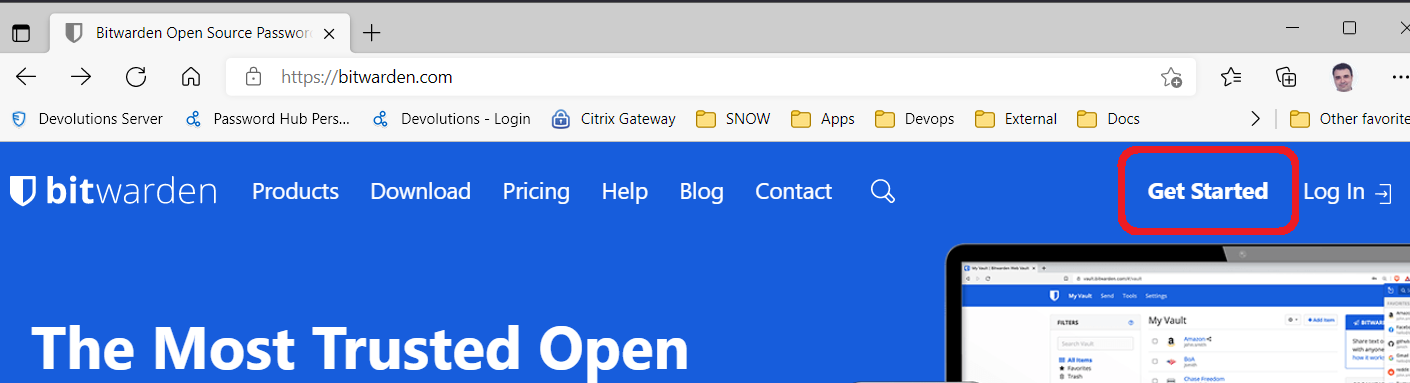
Fill in the form, it’s really simple. Use the password you wrote on the paper.

Step 3: Install the browser extension
Still on your computer, open your favourite browser -Firefox, Chrome, Edge, Opera, whatever- go to the bitwarden extension and install it.
Here it is for Firefox
Here for Chrome
Here for Microsoft Edge (you’re not still using Internet Explorer, are you?)
And here for Opera.
In case you’re using anything else, just google “bitwarden <browser name>” and you’ll find it.
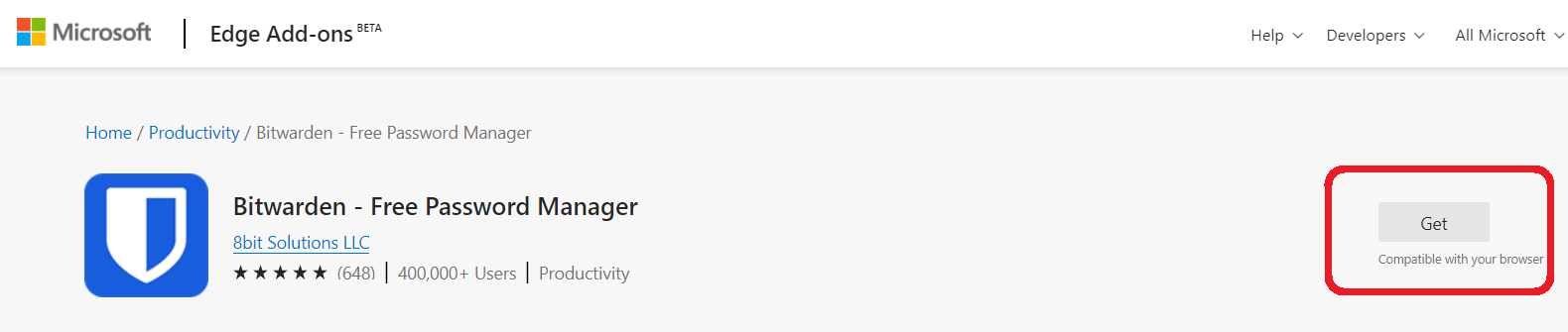
NOTE: As you’ll see, about the only annoying thing with Bitwarden is that if you click outside of it before you save your changes, it closes and loses your input. There’s a solution for this: you can click the “Pop out” button” and then it opens as a separate window. The “Pop up” button is this one:

When the extension is installed, you’ll get the Bitwarden shield icon on the top right corner of your browser. Click it and fill in your email and password.
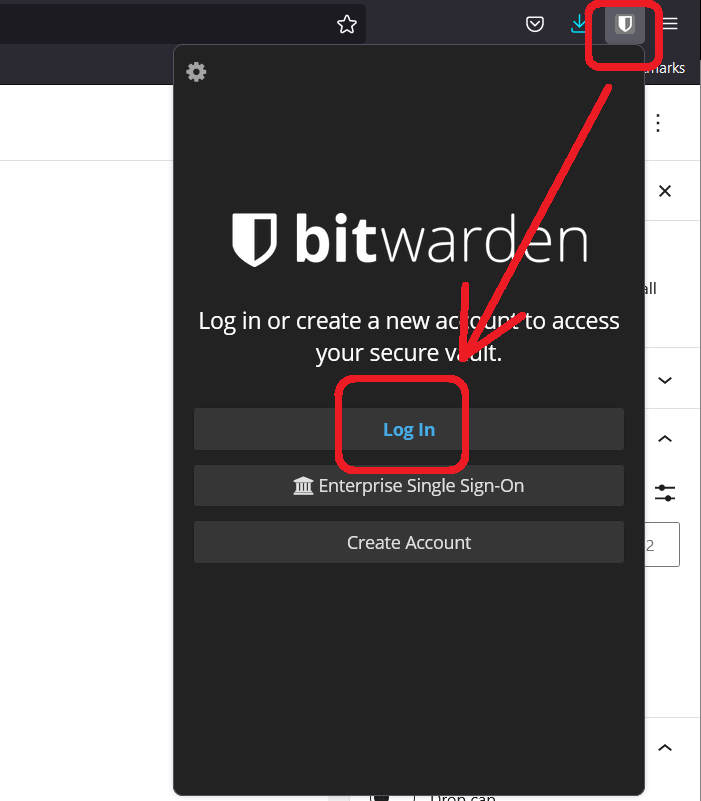

Once you log in you see your list of passwords. This a called your “vault”. For now, it’s obviously empty.
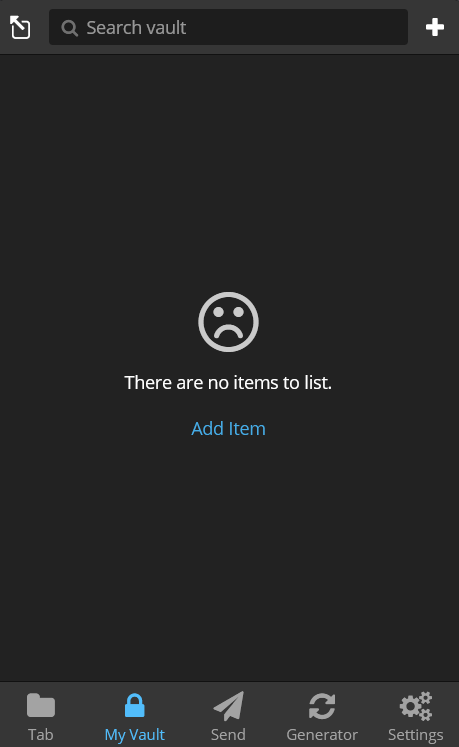
Click “Settings”, then “Unlock with pin”. Enter the 6 numbers you wrote on the paper and uncheck the “lock with master password…” check box.

Step 4: Store your credentials
If you’ve done so far, great job! Now it’s the time to start storing your passwords, one by one.
Click the shield icon of Bitwarden, then the plus icon on the top right corner.

Start with your email. Enter the name, username and password -the ones you have already. Add also the URL you use to access the site. Then click “Save”.

One by one, add all the sites and other services you have. This will probably take some time; my list has more than 400 entries 😊
Step 5: Try it
So all of this is supposed to help you right? Here’s how it helps you login. Say you want to log in to your email for example.
Click the shield icon of Bitwarden, click “My vault” and click the little arrow of the site. You’ll see that it takes you there.

In your email site, click “Sign in” or “Login” or whatever it has. Right click in the username or password and select Bitwarden > Auto-fill > your site name. Then click Next or Login or whatever it has.

If for whatever reason right click doesn’t find the site, there’s another way that’s not as easy but works every time. From “My vault” click the head icon to copy the username, then paste it in the site, then click the key icon to copy the password, then paste it in the site.
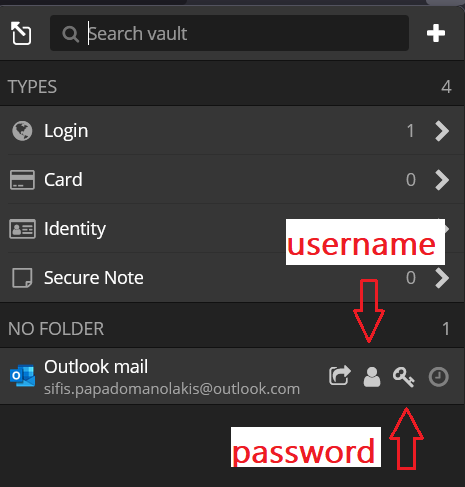
After doing it a few times, you’ll get the hang of it; it will feel very easy very quickly.
Step 6: Change your passwords
Until now you’ve done great, but we’re still using our old passwords. Now it’s the time to make them big and hard 😉
The exact process differs slightly for every site, obviously, but not much. In this example, I’ll use a popular e-shop, Zara UK.
Go to your profile and go to change password:

In the bitwarden “My vault” click the key icon of the site (see above) to copy the existing password. Paste it in the “Current password” box of the web site.
Then go in the bitwarden “My vault” again and click somewhere in the middle of the site name. This will open the entry. Click Edit on the top right corner.

Click the double arrow next to the password and click “yes” in the “overwrite password” question. Slide the length of the password to something over 17, click “regenerate” and then “select”.

Click “Save” to save the new password.
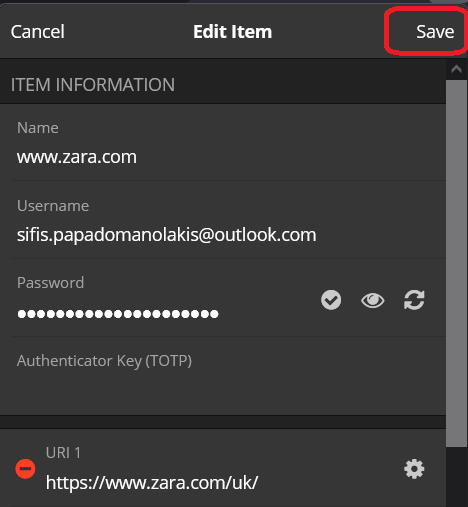
Now go to “My vault” again, click the key icon to copy the new password, go to the web site and paste it twice. Then click “Update password” or whatever button is there.

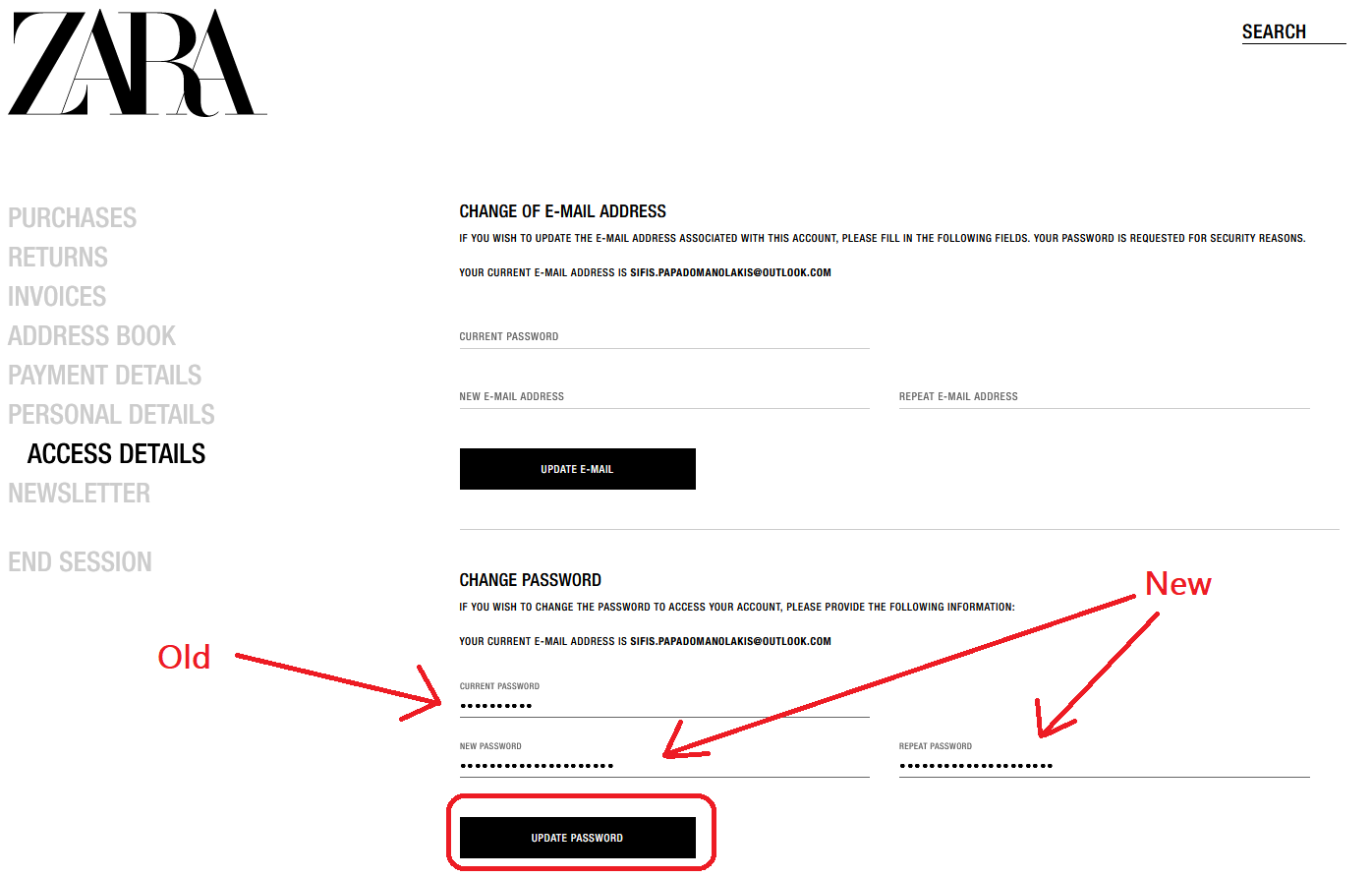
The first time you do it will be cumbersome, but after the first 2-3 sites, it will feel really easy.
If you’ve reached this far, congratulations 🥳🎉👏 You’ve done the hard work! The last thing to do is install the app on your smartphone so you can use it there too. Let’s go!